Line Studies Toolbar Menu on MT5 Platform
Sometimes traders will say "oh, I can not find Fibo expansion tool on my MetaTrader 5 where can I get it?"
The thing is that all these line studies are located on the line studies tool bar: however, by default not all are set to display, therefore a trader must know where to get these tools that are not shown by default on the MT5 CFD Platform. So how can a trader add a tool, to the line studies MT5 toolbar shown below?
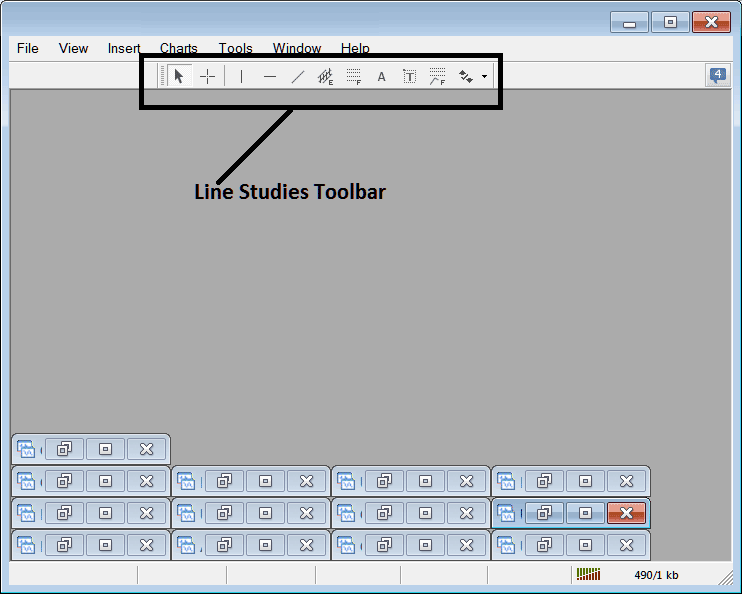
Customize a Toolbar on CFD Trading Platform
To add a tool not listed above a trader has to follow the steps below
- Right Click at MetaTrader 5 toolbar button key to the left of this(Looks like a stack of coins)as displayed below
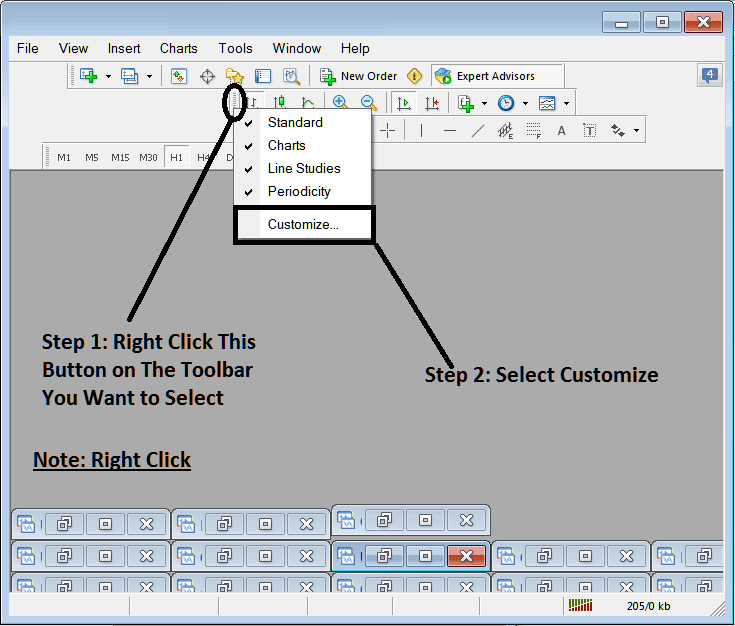
3. Click customize 4. Add all Tools
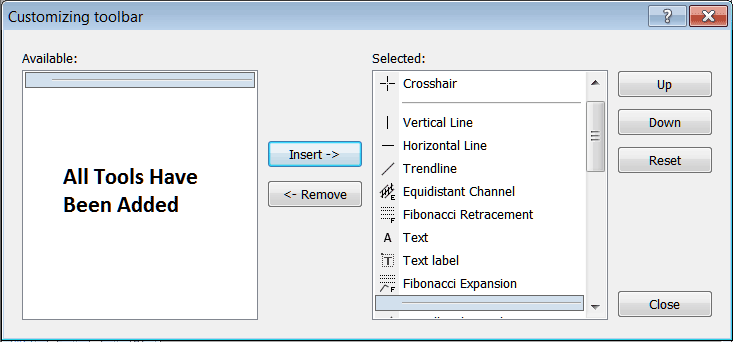
The following customize pop up window panel will popup:
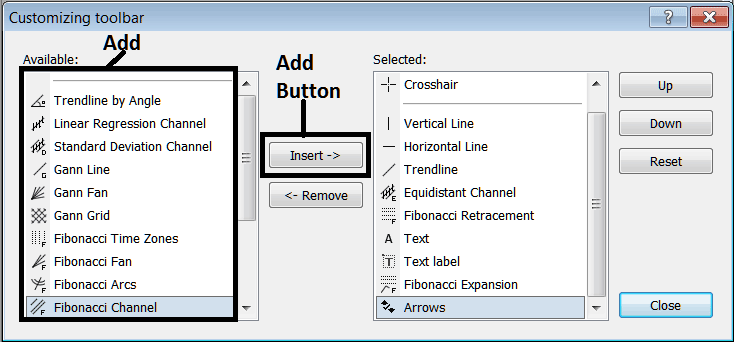
Choose all the tools from the left panel and add them: After adding this will look like:
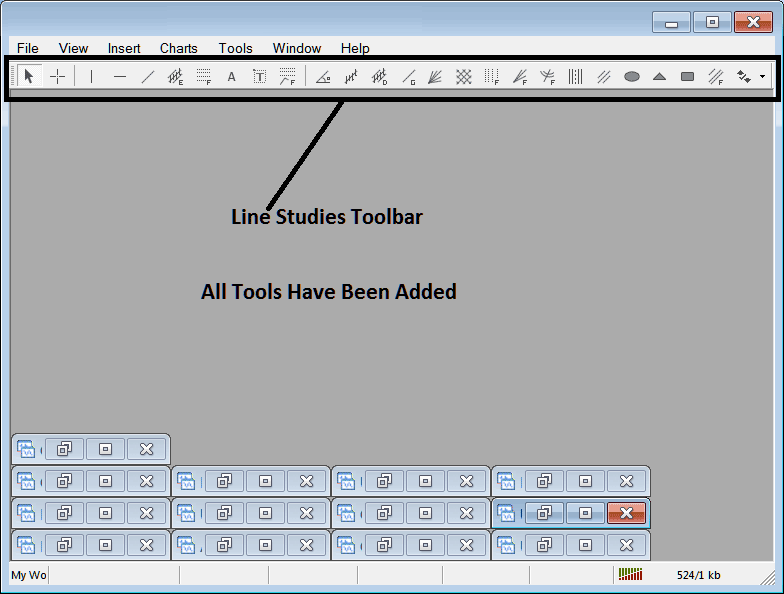
The MetaTrader 5 tool bar will now look like:
Explanations of Each Tool
The following is the explanation of each tool on this tool bar.

1: Select mouse as cursor, change mouse to the default cursor
2: Choose Cross-Hair cursor, a type of cursor that maps coordinates to the axis of the charts
3: Draw a vertical line
4: Draw a Horizontal line
5: Draw a cfd trend line
6: Equidistant Channel
7: CFDs Fibonacci Retracement
8: Text button
9: Text Label Button
10: CFD Fibonacci Expansion
11: cfd trend by Angle
12: Linear Regression Channel
13:Standard Deviations Channel
14: Gann Lines
15: Gann Fan
16: Gann Grid
17: Fibonacci Time zones
18: Fibonacci Fan
19: Fibo Arc
20: Cycle Lines
21: Andrew's Pitchfork
22: Insert Ellipse
23: Insert Triangle
24: Insert Rectangle
25: Fibonacci Channels
26: Draw Arrows
How to Remove Tools from CFDs Trading Platform
As a trader you will not need all these button keys and you can hide some of them by clicking on customize button, then select some of the items on right window and then select hide.
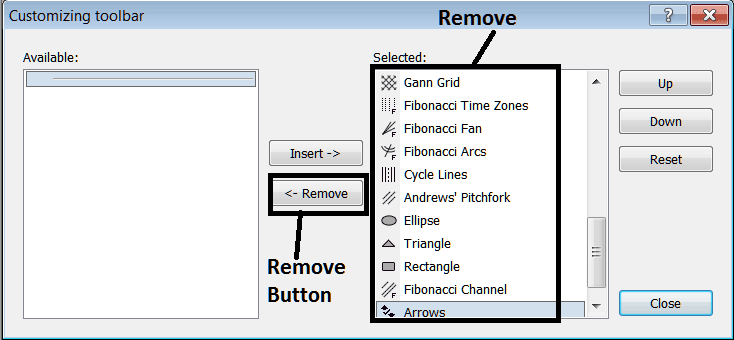
Remove the above tools by clicking on them & then clicking the remove button key, so as to save space on your MT5 CFD Platform workspace.