Options Setting on Tools Menu in MT5 Software
The options button is used for a variety of many different tasks on the MetaTrader 5. The Option button is listed within the tools menu in MetaTrader 5 as displayed below. Shortcut key for this - Ctrl+O.
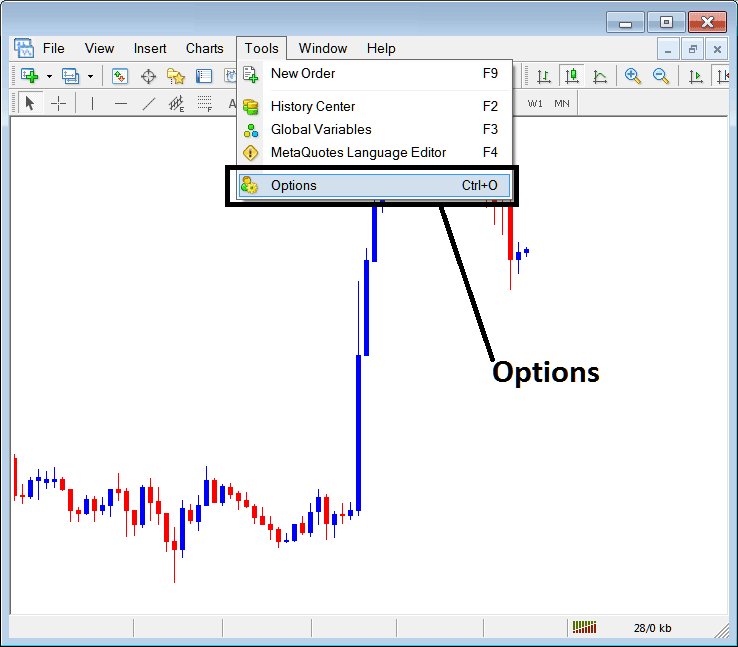
MetaTrader 5 Options Settings
These are shown below: the list of various MT5 buttons are displayed as tabs as displayed on the image below. As a trader to edit anything on this window just click on any of these MT5 buttons and then change the settings.
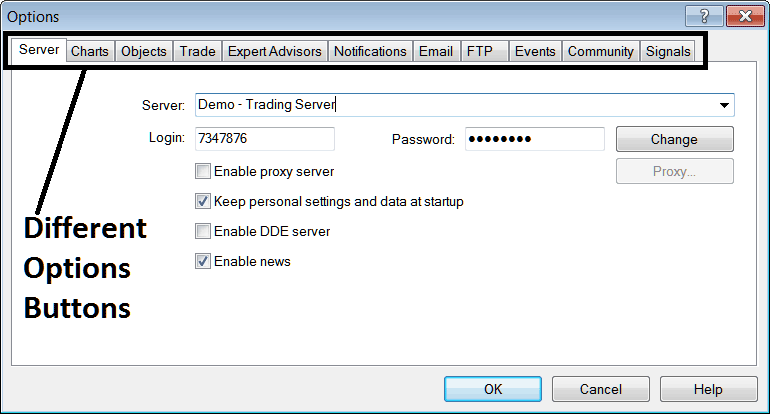
Server
The server settings for MetaTrader 5 are shown below. A trader can edit from this tab, but most of the times it is not necessary as these options are automatically preset to the brokers' server settings by the broker and there is no need to re-adjust them. However, just for guide purposes, the Server will show the server of your cfd broker and if it is a Demo or a Real Server. The MT5 account sign in & password will also be displayed below and as a trader you can change the password from this window for demo cfd accounts, however be careful if you are changing passwords make sure to remember them.
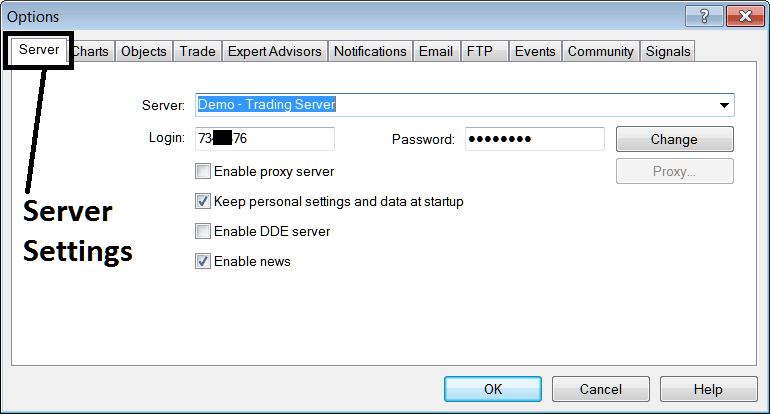
Other options are, enable proxy server, this is not required, Keep personal data at startup, this is ticked by default, that way the software will automatically remember your login & password so that you don't have to type them & key them in every time you sign in to your platform. Enable DDE server is not required, Enable the news is ticked & you can receive real time news reports to your MetaTrader 5 on News options, located in the Terminal window, (Short cut Keys Ctrl+T).
CFD Trading Chart
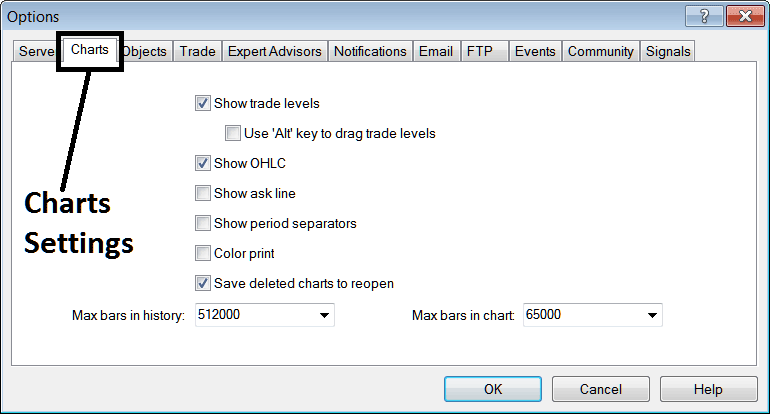
following are marked on Charts Options
Show Trade Levels - These lines will show levels where orders were placed, it will also show levels where pending cfd orders are placed. This will also show the Take Profit CFDs Order & Stop Loss CFD Order levels. These trade levels lines appear as red broken lines marking these trade areas.
If there is no open transaction, no level will be shown: if many cfds trades have been placed, multiple lines will be displayed for these levels.
Use the Alt key to drag trade areas is not a very suitable option to use, because if you place many orders you might change wrong order, therefore it is best to leave this as it is and not change it (Probability of this one losing you money is there so leave as it is)
Show OHCL - Show Opening, High, Closing and Low CFD Prices for every candlestick
Show Ask Line - Show the Bid CFD Price, (no need for this)
Show period separators - a separator will draw a line where the daily chart starts and ends, for example if you trade with 5 minutes, 15 minute or 1 Hour Charts the period separator will draw a vertical line when the cfd market closes for each trading day. (4 H separator is Weekly, for Daily and Weekly separator is Monthly).
Color Print - To print in color & not black white which is set by default, use this option & then the next time you print it will be a colored print & not black & white.
Save deleted charts to reopen - Save all cfd trading charts that are deleted & these can be accessed later at any time within.
Max bars in History, Max bars in CFD Chart - To save computer resources RAM, Processor Speed and Hard disk Space, these bars stored are limited to a specific number that is optimum, it is best to use default number selected.
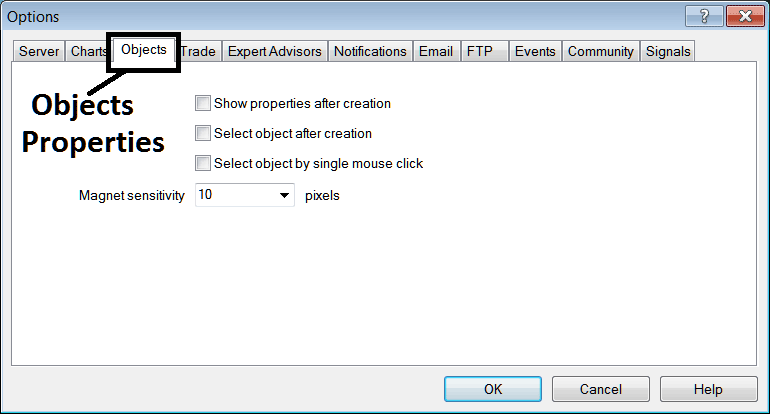
Objects
These are:
Show properties after creation - immediately display cfd trading indicator/line tool settings after it is placed on cfd trading chart to facilitate editing of their properties.
Choose Object after creation - an cfd trading indicator/line tool can be selected by double-clicking on it once it is drawn, to facilitate editing of its properties.
Select object by single mouse click - select an cfd trading indicator/line tool using single mouse click not by double click, double clicking will show properties window of cfd technical indicator/line tool
Magnet Sensitivity - immediately draw a line tool to the nearest low or high that is within 10 pixels of the point selected. This allows for lines drawn to more or less be placed on the levels that they are intended without much editing by aligning these lines to the nearest high or low of cfds price.
Trade
These are the default used by the platform to determine what cfd instrument you buy and what amount you buy.
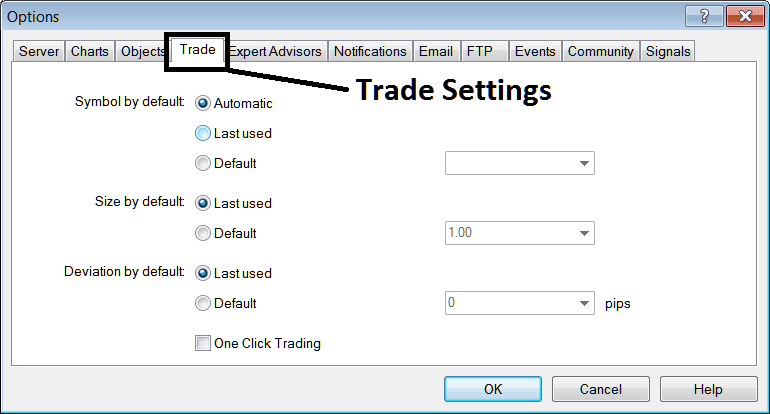
Symbol by Default - Automatically set to the open cfd trading chart which you've open
Size by default - Automatically use last lot size, or set every trade to be default of 1 lot or 2 lots or 1 micro lot or 2 micro lots by select the default button and then selecting the number of lots from drop don list next to this option.
Deviation - Set the allowed number of pips that can move away when executing an order for example 2 pips, or zero pips if you want to specify to place cfds trades at the exact level where you click.
One Click trading - Place cfds trades buy or sell with one click. (Do not use this option as it is prone to mistakes and no time to correct, this option can lose you money.)
Automated CFDs Expert Advisors
Automated CFDs Expert Advisors window is shown below:
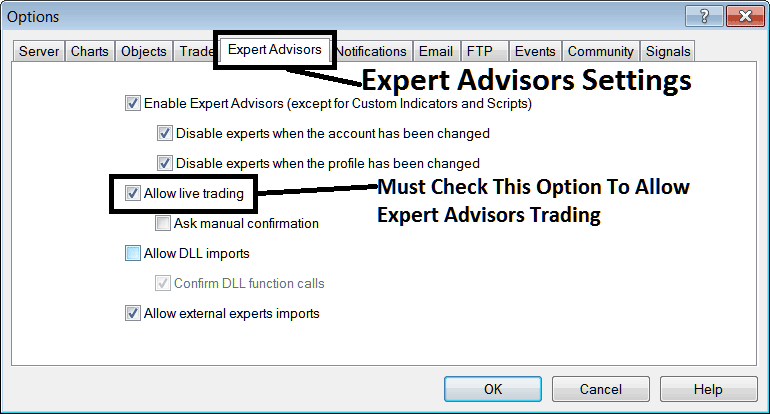
The following options are used:
Enable Automated CFDs Expert Advisors - Allow for Automated CFDs Expert-Advisor to be placed on the chart for automated execution purposes
Disable experts when accounts have been changed - login to a different MT5 account deactivates Automated CFDs Expert-Advisors
Disable Experts when profile has been change - When you change profiles the Automated CFDs Expert Advisors setting for allowing trading in new profile is deactivated until you allow & manually place an EA on this new opened chart.
Allow Live Trading - Give Permission to EA to open cfds trades on the live cfds market.
(Ask Manual Confirmation - no needs for this if you're using Automated CFDs Expert-Advisors, leave this as it's displayed without checking it.)
Allow DLL imports - Dynamic Link Libraries, which are external, unless this is required this should be left unticked. (External means that these libraries are referenced from a source external & outside your PC computer, so you should try to be careful with this one)
Confirm DLL functions calls - Exercise manual permission for each and every function call, either allow it or disallow it depending on your trade parameters.
Allow External Experts imports - This is used to allow your Automated CFDs Expert Advisor to reference some data from another Expert Advisor that is in another place, away from your PC computer, (External means these Expert-Advisor CFD Robots are referenced from an external source outside your computer, so be careful with this option)
Notifications
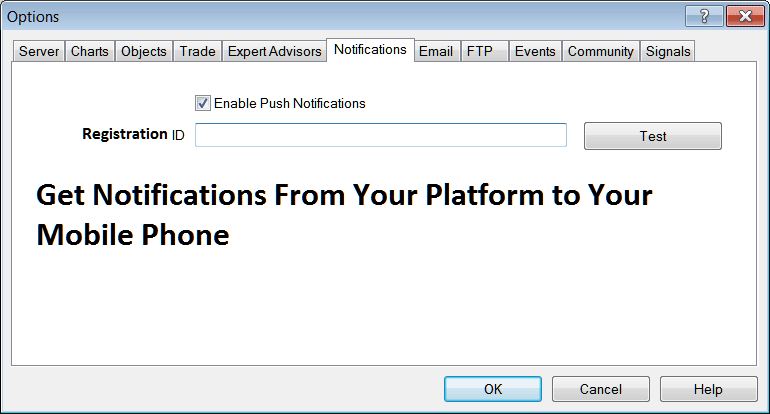
To receive notification on your phone from your MT5 platform, use notifications option shown below. Not that you are required to have a registration ID, from MetaQuotes Corp. To begin receiving notifications sent to your mobile via text messages.
Check the option, Enable Push Notifications, put your ID, press test & you should get a test notification text message. You require to first sign up for this ID, to do so, use the following window panel on your MT5 & follow the instruction you'll get from this Notification window.
Email Settings
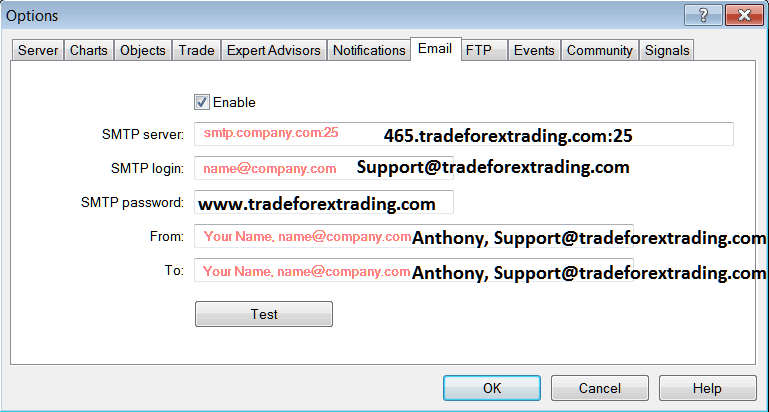
Most traders might not need this, but if you're one of those who require, the settings can be placed below.
Lets use this company, that owns this web site, www.tradegoldtrading.com, click & check the button labeled 'Enable' the respective mail settings are shown below and the SMTP setting is 'SMTP: Port 465', Choose and put these as displayed below. Click test & check your in-box to confirm you receive the message.
Events
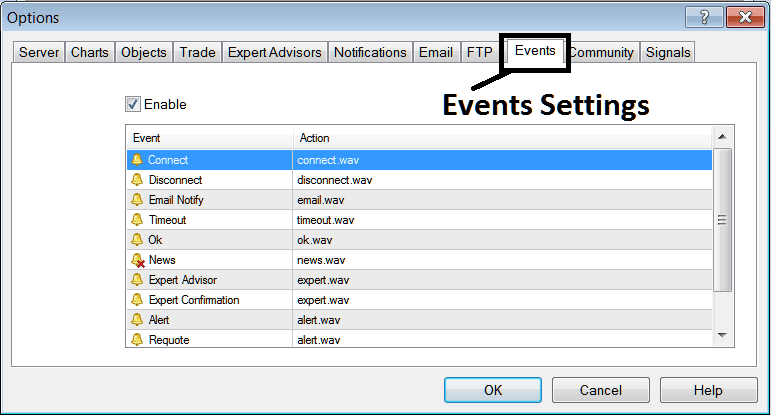
Events in MetaTrader 5 are notifications, either sound notification, an email or SMS alert. The notifications can be set for different events such as timeout, connect, disconnect, news, Automated CFDs Expert Advisor, EA confirmation, cfds price level alert & requote alert.
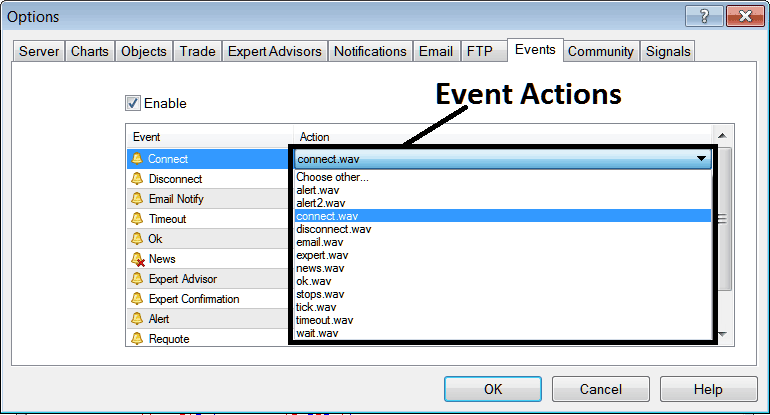
Various types of alert actions which can be set for any event can be chosen by double-clicking on event action, pressing the dropdown arrow & then choosing the alert action you want from the drop-down list illustrated and shown below.
MQL5 CFDs EA Robots Forum
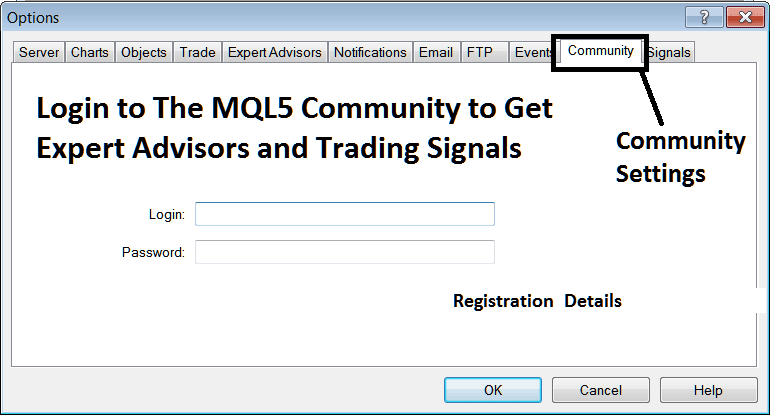
The MQL5 community is a forum where traders can find others & Exchange Automated CFDs Expert Advisors & CFD Signals with each other. CFD traders have to register to this community and can then access services from their platform directly. To get details on how to access and register in this community, login to your MetaTrader 5 software & go to the window shown below & follow the instructions.
MQL5 Trading Signals
Trading signal settings are provided by MQL5, MQL5 is the owner of MetaTrader Software. Signals service allows traders to adjust the following:
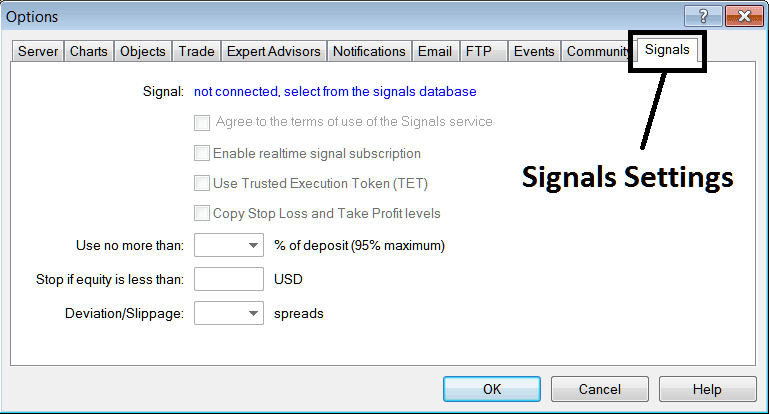
Signal - First Subscribe to a cfd trading signal
Agree to Terms - Agree to the terms of using the cfd trading signal service
Enable Real time cfd trading signal subscription - allow real time transmission of cfd trading signals to your trading platform.
Use Trusted Execution Token( TET ) - Trusted execution token means you do not have to open your MT5 on your PC Desktop computer to have signals executed, Trusted Execution Token will allow signals to be executed even if your MetaTrader 5 isn't started on your PC computer.
Copy Stop Loss CFDs Order & Take Profit CFD Order Areas - Copy these levels from the cfd signal provider automatically.
Use no more than - Option for cfd money management, set an amount of 10% for aggressive traders and 5% for non aggressive traders, that way you limit your risk capital in your account.
Stop if equity is less than - Set a percent to calculate this level for example if your equity is $10,000 then use 70%, that is $7,000 and set this amount: if the cfd trading signal makes a loss upto this point the cfd signal execution is stopped.
Deviation/Slippage - you can set a value like 2 so as to give some flexibility in case of slippage of a few pips here and there when executing cfds trades with your broker, especially if your cfd broker is one of those who requotes you. (Get an STP Broker with No-Requotes Policy to guarantee execution of your trades and avoid these slippages).