Place CCI CFDs Technical Indicator on CFDs Chart
MT5 CFD Platform - CCI CFDs Technical Indicator on MT5 CFDs Chart in MetaTrader 5 Platform. For Technical Analysis: CFDs MT5 Technical Indicator Technical analysis of cfd CCI.
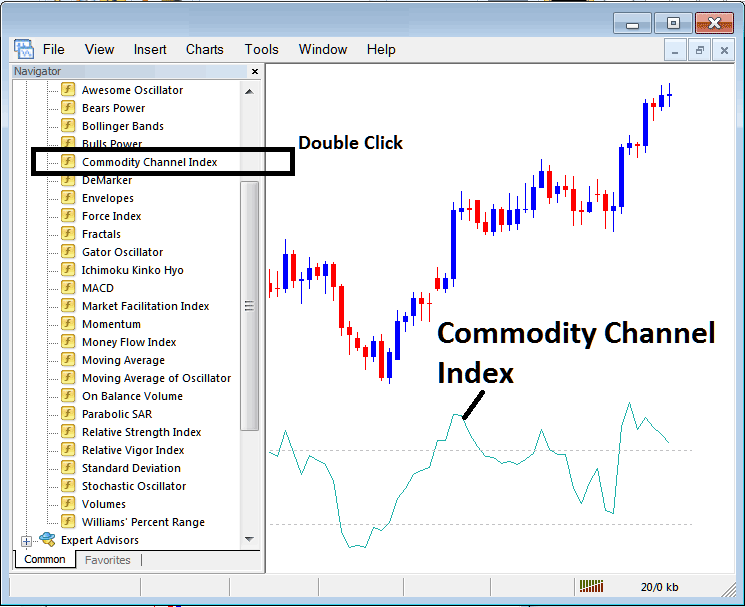
How to Place MetaTrader 5 Indicators on MetaTrader 5 CFDs Charts
Step 1: Open The Platform Navigator Window
Open Navigator panel as illustrated & shown below - Navigate to ' View ' menu (then click), then choose ' MetaTrader 5 Navigator ' window panel (click), or From Standard Tool bar click the 'MetaTrader 5 Navigator' button or press short cut keyboard keys 'Ctrl+N'
On MT5 Navigator window, select "Technical Indicators" , (Double-Click)
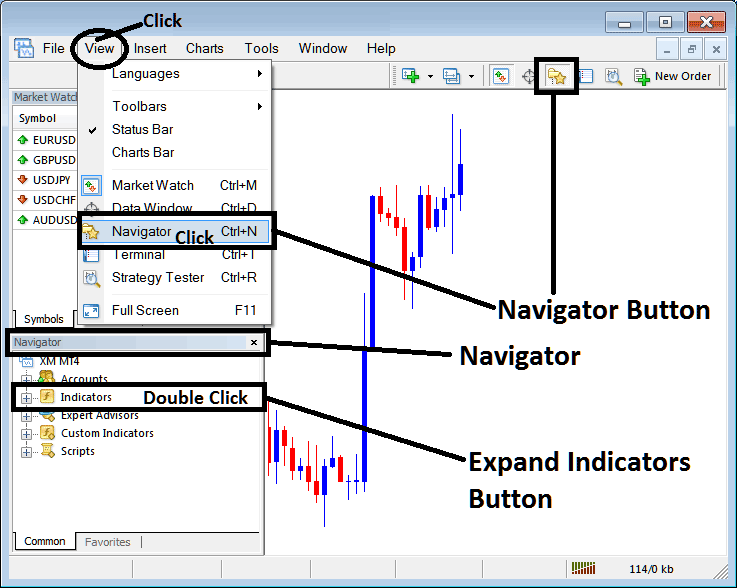
Step 2: Expand MetaTrader 5 Indicators Menu on the Navigator
Expand the MT5 indicator menu by clicking on expand button key marker (+) or doubleclick 'indicators' menu, after this the MT5 button will appear as (-) and will now display a list as shown below.
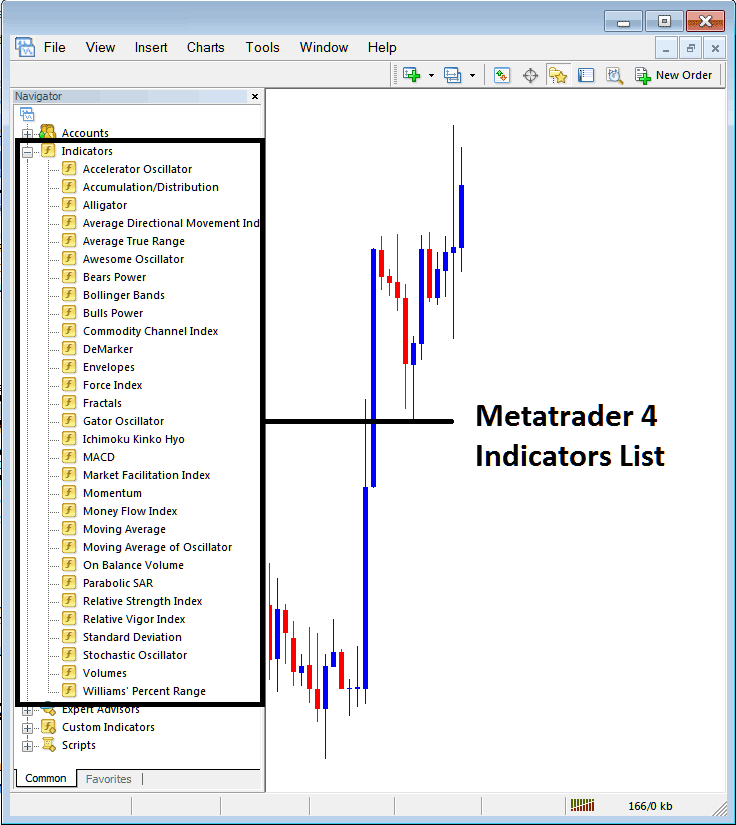
From Above panel you can then add any MT5 indicator that you want on MT5 cfds chart.
Placing CCI on CFDs Trading Chart
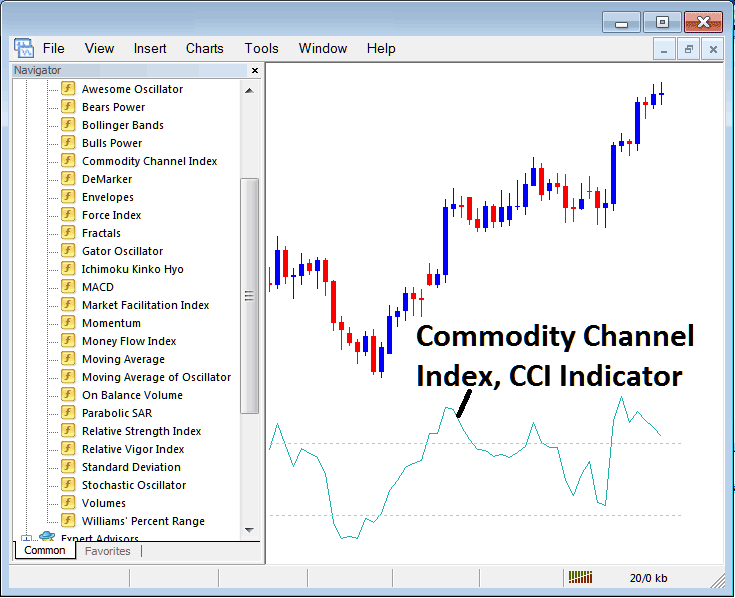
Step 1: Choose the CCI button key in the MT5 list of technical indicators as shown below:
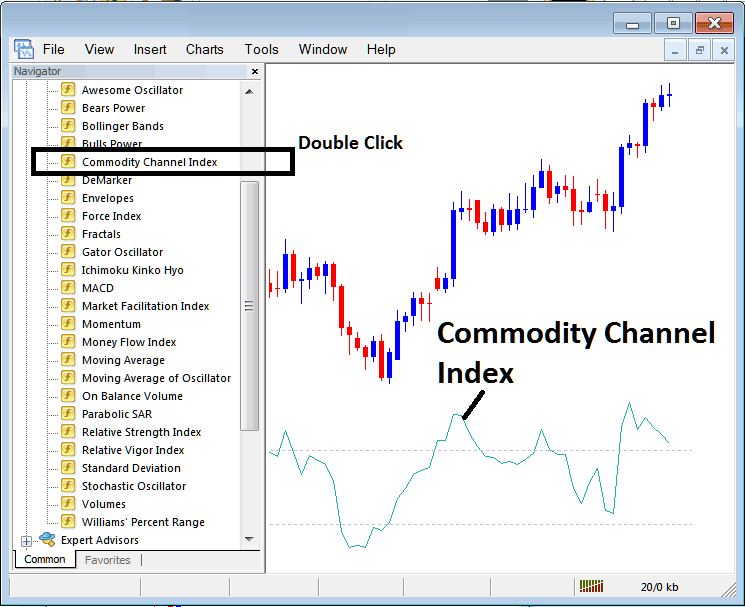
Step 2: Double-click CCI Button, and click ok to place the technical indicator on the chart as illustrated & shown below:
Edit CCI CFD Technical Indicator Settings
To Adjust the Settings, right click in the CCI, select properties and then edit the properties of the CCI CFD Indicator using the popup menu that appears and then click ok button key after you change settings.
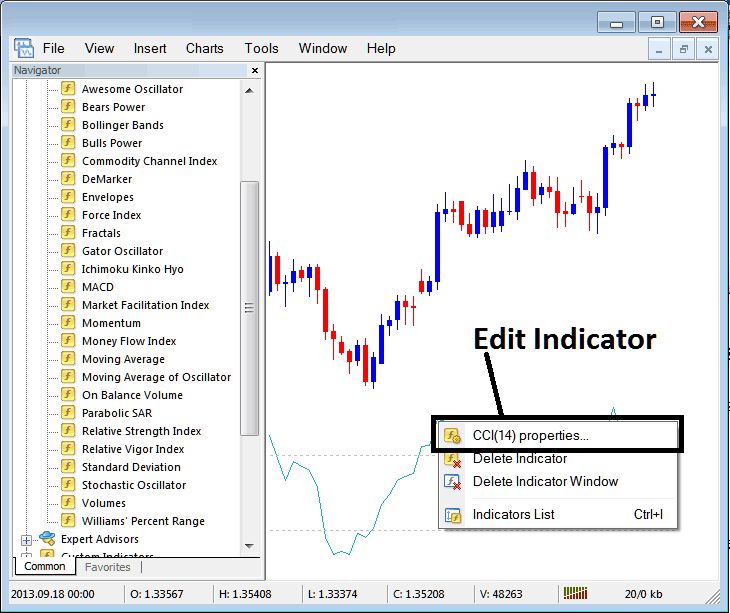
Following pop-up panel pops up and the settings can be edited from this pop up window panel.