
How to Setup MT4 PC Oil Trading Platform
To begin trading Oil, a trader will need to first setup the MT4 oil software on their Desktop computer & this software is the platform with which they will be using to place crude oil trades in the crude oil market. The MT4 oil trading software is top rated trading software in crude oil market
To get MT4 Oil Trading Software a trader requires to first of all download the Oil software from an online oil broker - Oil MetaTrader4 Download.
Once you have downloaded the software you will need to navigate to the download location of your Firefox browser (first maximize the Firefox browser panel on the desktop): as a ShortCut press both keyboard keys CTRL + J keys on your key-board to get the MetaTrader 4 platform download location. Once on this location double-click to open the oil platform & proceed as follows.
Step 1: The following pop up window will launch the oil software application click next to proceed.
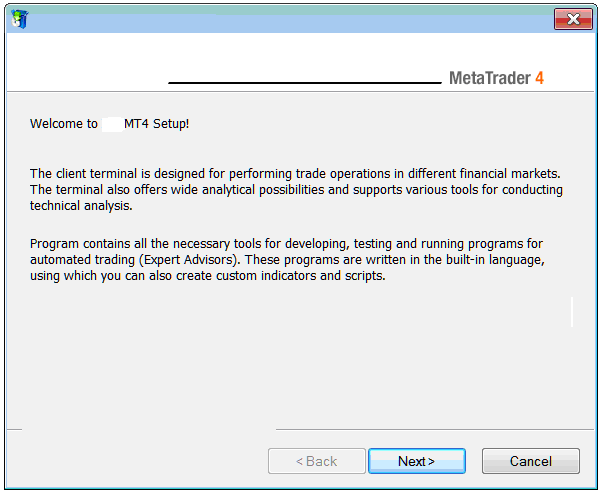
Installing MetaTrader 4 Oil Trading Online Trading Software - How to Install MT4 PC Oil Software
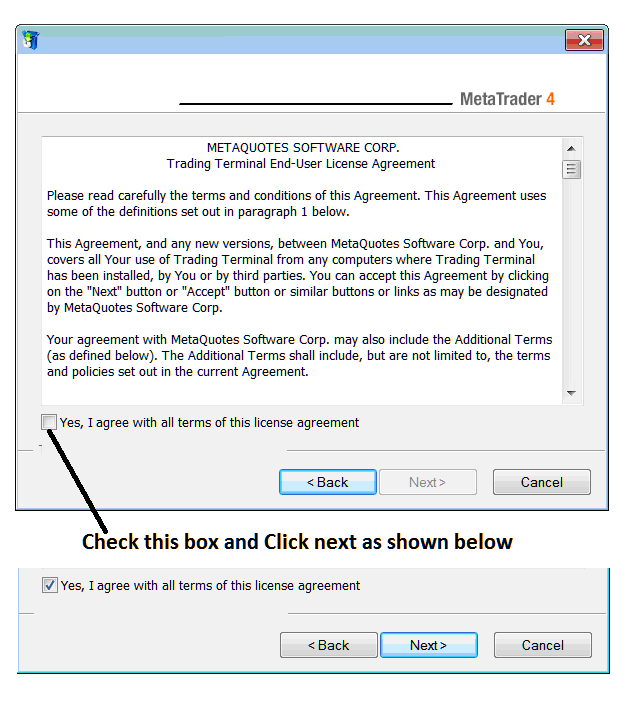
Step 2: Tick the box below & click next to proceed with MT4 Oil software installation.
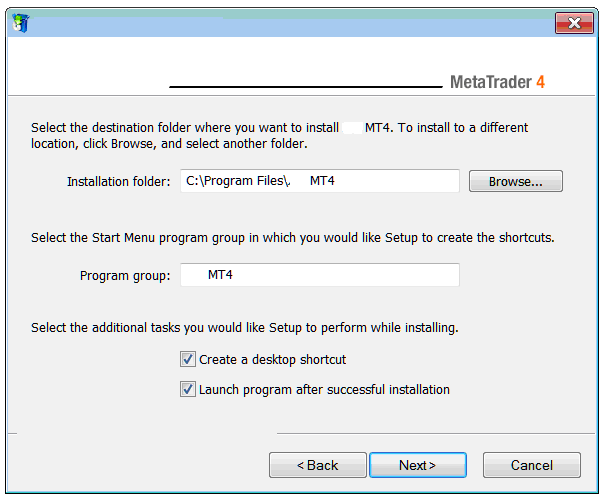
Step3: On the next panel you will see the following settings, click next to proceed without changing any of the setting - MetaTrader 4 software Oil.
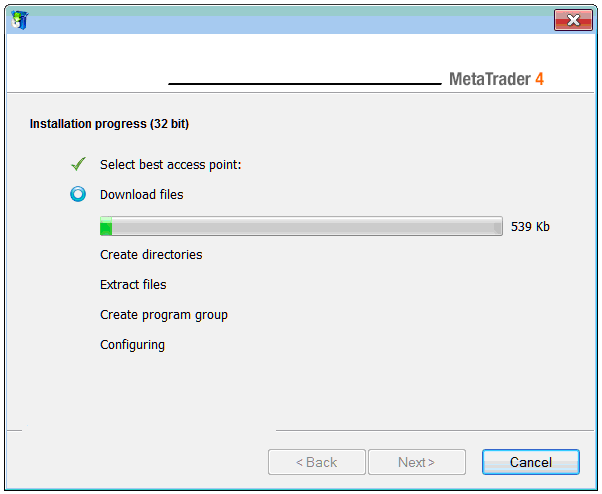
The following progress window panel will pop-up showing the progress of Oil software installation, this might take a few minutes to complete, at this point you'll have to wait for progress bar to complete.
Once the setup progress is complete the following window will pop-up, click on "Finish Button Key" button to complete the setup of MT4 oil trading software.
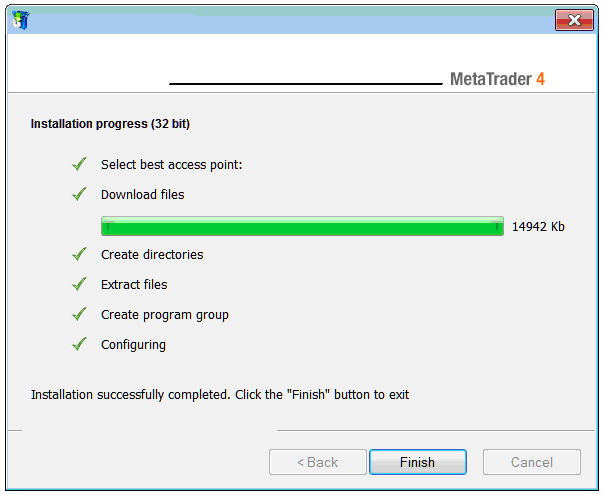
The setup of MT4 platform for oil trading is now complete and you can access it from desktop, as a desktop icon marked "MetaTrader 4 Crude Oil Software" or clicking begin menu on your PC computer>>> then select all programs>>> then choose MT4.
Once you open the MetaTrader 4 platform, then you can now start to practice oil using a practice account. Next Lesson: How to Open a Demo Account.




