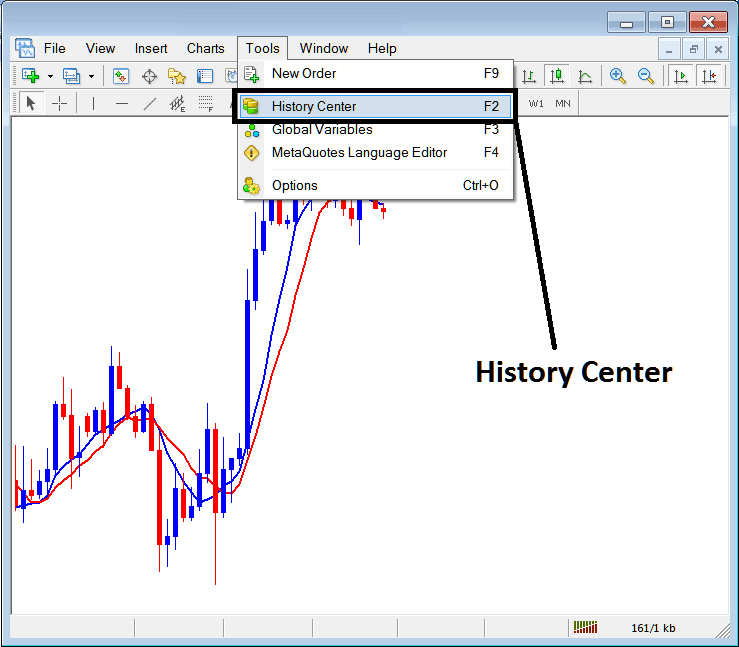
History Center on Tools Menu in the MT4
The history center on MT4 is located in the tools menu. The history center in MetaTrader 4 saves data for every chart you open. Open the Indices M15 chart, and it starts storing info for that timeframe. Each time you log back in, it updates with the latest prices and keeps the data.
This also means that the platform won't start keeping data for any chart you haven't opened in your MT4. If you only open M15 for Indices, it will only save information for M15, and not for Indices 1H or Indices 4H. So, if you want to save data for 1 Hour and H4, you must open those timeframes, and data will start saving from that point.
In the trading illustration demonstrated below, the timeframes applicable to Indices are depicted. Nevertheless, only the M15, H1, and H4 icons are highlighted and marked in yellow and green, signifying that their associated data is actively being saved and refreshed in the History Center. All other timeframes appear in gray, indicating they have not yet been accessed within this trading platform. To rectify this and commence updating the price data for all charts, the user simply needs to open any desired timeframe for the Indices, such as the 30-minute chart. Doing so will instantly cause that specific timeframe's icon to switch from gray to yellow and green: this process should be repeated for all remaining charts.
From the above exemplification you can see the format that MT4 uses to store trading price data information as figures, these numbers are the ones used to replicate the trading chart.
Why Use the MetaTrader 4 History Center
Because of the format of storing data in numbers it means that these figures can be analyzed using mathematical formulas and hence these mathematical methods can then be used to trade the market prices by analyzing these price movements.
These Mathematical methods are implemented for trading using computer algorithm trading programs. Computer automated programs will be programmed using these mathematical methods and formulas. This will produce what in coding is known as algorithm, these algorithms are implemented on MT4 using programs referred to & known as Expert Advisors(EAs) - Automated Programs.
This section regarding Expert Advisors (EAs) addresses the purpose of the History center. The data contained within it serves stock traders in evaluating their automated Stock EAs. They can analyze how these EA Automated Trading Robots would have performed historically and subsequently ascertain their profitability and suitability for different trading approaches. When automated trading programs prove to be profitable, traders have the opportunity to implement these systems on the live trading market. If the programs are not profitable, traders make changes and adjustments to their algorithms' trading formulas and reprogram the automated algorithm. After making these adjustments, traders test the new automated trading algorithm with the same data on the history center. The goal is to successfully program an algorithm that is profitable enough to trade with on the live market and execute profitable trade positions.
One way to add data to the history center is by downloading it, as illustrated below. However, this downloaded dataset often contains gaps and provides inaccurate information. As an indices trader, it's recommended to use data directly fetched by the trading software after installation, ensuring greater accuracy. That means the information that is available from when you downloaded the platform and started to trade with it, even if it is a couple of weeks or a couple of months.
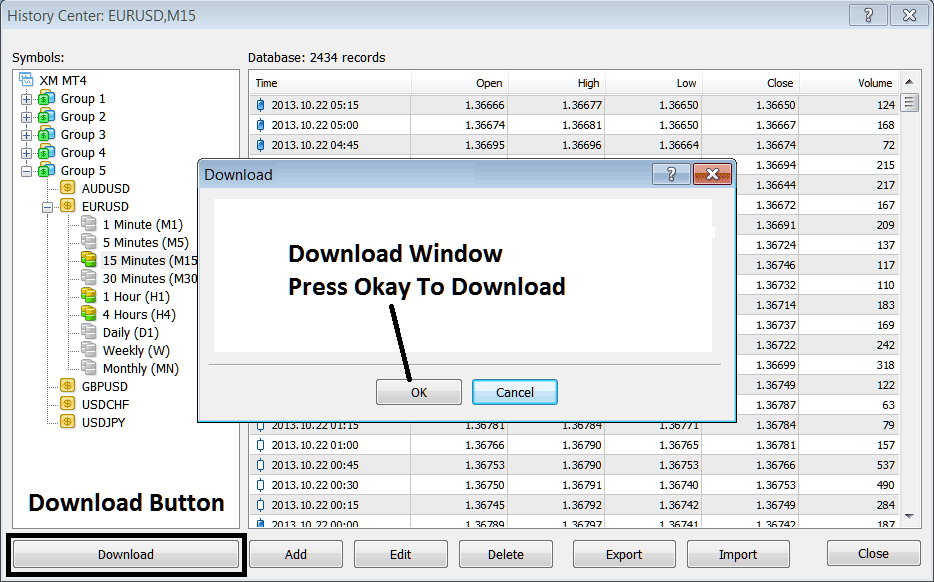
If you want to start testing these Expert Advisors then for every trade that you trade you as a trader must open that chart, as well as opening all the time-frames of that chart, that's the following:
- 1 Min - M1
- 5 Min - M5
- 15 Min - M15
- 30 Minutes - M30
- 1H - 1H
- 4 Hour - H4
- Daily - D1
- Weekly - W1
- Monthly - MN
When preparing to test your Expert Advisor (EA), set the starting date corresponding to when you successfully download all the requisite data for the various chart timeframes and different MT4 symbols. This meticulous step ensures your EAs utilize accurate information, thereby providing reliable and correct back-testing results.
Skip downloading extra data to MT4. Use only the info from open trading charts above. Start your work from there.
More Topics and Courses:
- S&P ASX 200 Strategy List
- How to Find SPAIN35 on MetaTrader 5 iPad App
- How is FTSEMIB40 Traded Online on the MetaTrader 5 Trading Platform?
- What's the Value of 1 Point for S&P ASX Stock Index?
- How Can I Add US TEC 100 in MT4 Software Platform?
- Stochastics Indicator Bullish & Bearish Indices Divergence Trading Setup
- SPAIN 35 Stock Index Trading Trade Strategy How to Create Stock Indices Trading Strategy for SPAIN35 Course
- How to Add SMI20 in MT4 Software Platform
- Best Strategy to GER30 Training Tutorial
- US 100 Strategy Course
