MetaTrader 4 Terminal Window
The MetaTrader 4 Platform Terminal Window is mainly used for watching your balance, account equity, and trade reports. Other things can be set up in this window, but most of them are not often used.
On the online trading platform MT4 the Terminal Window Panel is illustrated below:
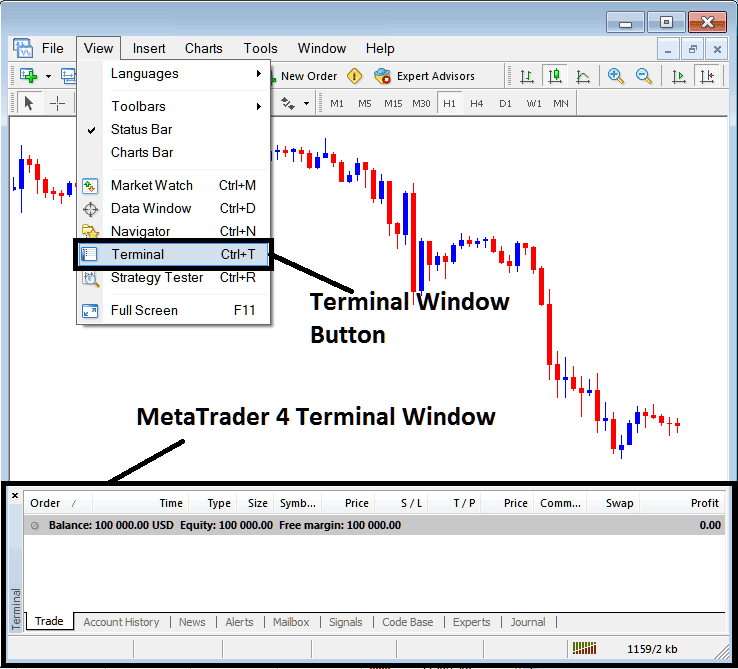
Terminal Window Panel - MetaTrader 4 Online Platform
The Terminal Panel Window has the Following Sub-Menu or Tabs:
- Trade
- Index Account History
- News
- Alerts
- Mailbox
- Trade Signals
- Code Base
- Experts
- Journal
Let us look at each on its own:
Trade Tab
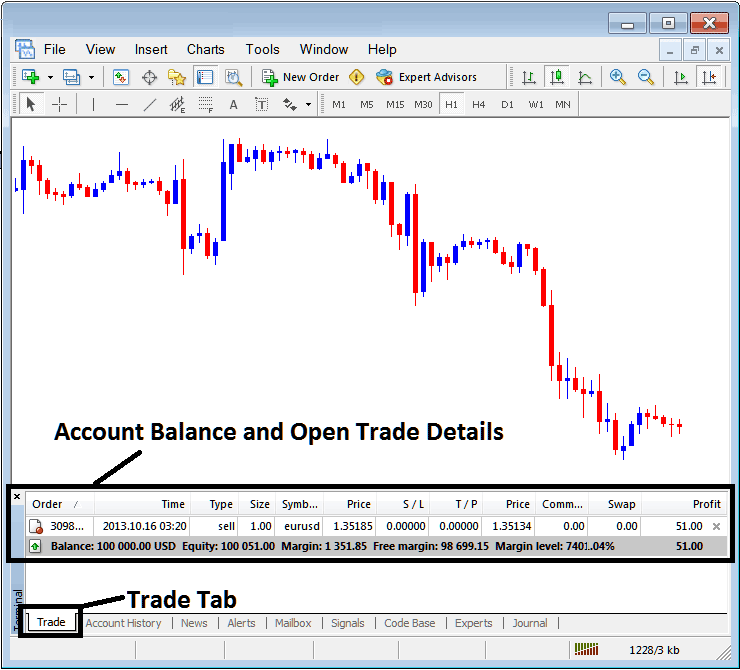
If you open a Indices on the MetaTrader 4 platform, the transaction will then be recorded here on this Trade Tab. For Example if you sell The Indices, open a sell indices trading order the following information shall be recorded on this Trade Tab panel window.
Trade Tab - Trading Software Windows
From the above example: trade details and particulars are illustrated above under the column details marked
Order, Time, Type, Size, Quote, Price, S/L,T/P, Commission, Swap, Profit
Order, - The trade number
Time, - The Time
Type, - The Type of order, Sell or Buy
Size, - Size of trade, 1 Standard Lot
Quote, - MetaTrader 4 Symbol
Open Price - 1.35185
S/L, - StopLoss
T/P, - Take Profit Order
Current Price
Commission, - Commission (no commission charged by this broker)
Swap, - no swap charged as per now, trade hasn't stayed overnight
Profit - $51
Most common operation after registering a trade is to set the Stop Loss Order and TP Order, These are abbreviated as S/L and T/P. There's likely no other operation to setup after this only to monitor the trade transactions within the trading platform workspace after setting these 2 levels, stop loss will close your order with a minimum loss and take profit'll close your it at a reasonable profit.
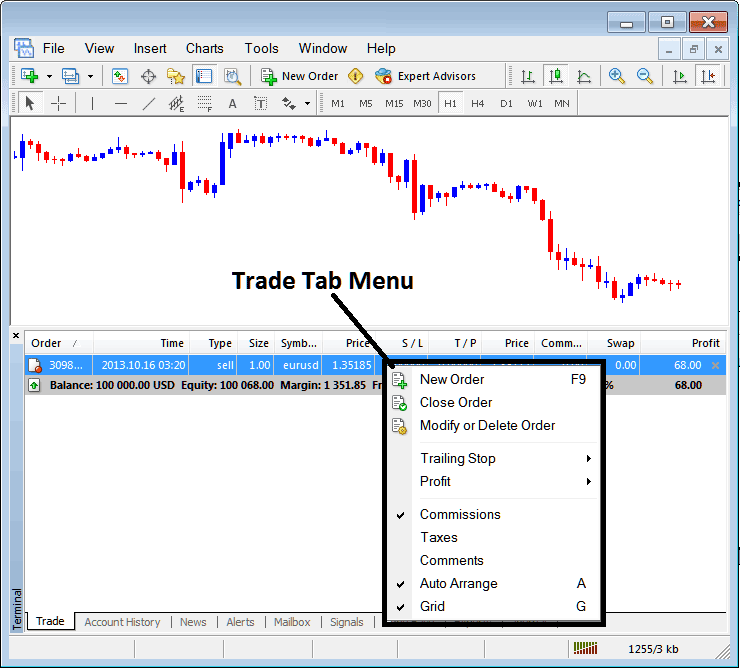
To apply this Stop-Loss (S/L) and Take-Profit (T/P), one must Right-Click anywhere within the shaded grey area of the Trade Tab: a context menu will emerge, which is utilized for modifying the parameters of any currently open trading order.
This will pop up as:
Modify a Order on the MT4 Platform Software
Menu has The following Options:
- New Order - Put a new trade
- Close - Can close out this transaction at ruling price
- Modify or Delete - Can Modify the S/L and T/P, (order can't be deleted, delete is for pending orders which aren't yet executed)
- Trailing Stop - Place & Set a trailing StopLoss
- Profit - View profit as either pips or as dollars: depending on the option you favor.
- Commission, Taxes, Comments, are additional columns which you can select to show or hide by ticking/unticking) them.
- Auto Arrange - Arrange charts according to alphabet, time of open, most lucrative according to sorting by choosing a column of arranging priority, for examples "Time" column.
- Grid - Show Grid or do not Show Grid, by Checking or Unchecking this option.
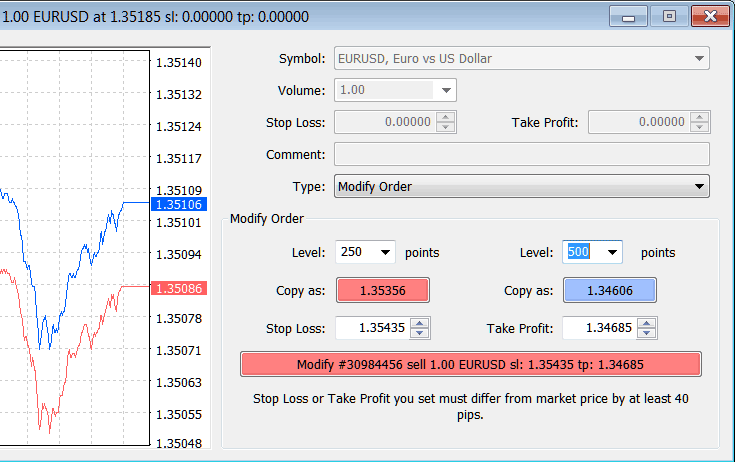
To input the Take Profit (TP) Order and Stop-Loss Order (S/L), we utilize the third available option, labeled "Modify or Delete": selecting this option reveals the subsequent configuration window:
Stop Loss is placed at 250 points - 25 pips
TP is placed at 500 points - 50 pips
You can set these two points by picking 250 and 500 where it says "points." The red part labeled "copy" is for the Stop Loss Order, and the blue part labeled "copy" is for the Take-Profit Order, as shown in the picture below.
After that click the wide red button tool mark sign ed and tagged modify to modify.
Modify a Order on the MetaTrader 4 Software
Order will then appear and be shown as below, note that the S/L and T/P columns for our trade have been updated now as illustrated and displayed below.
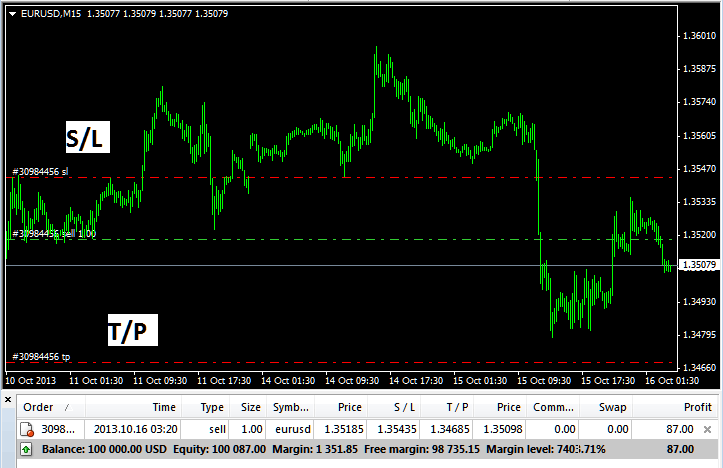
Take Profit Order and Stop-Loss Order Zones Shown on Meta Trader Software
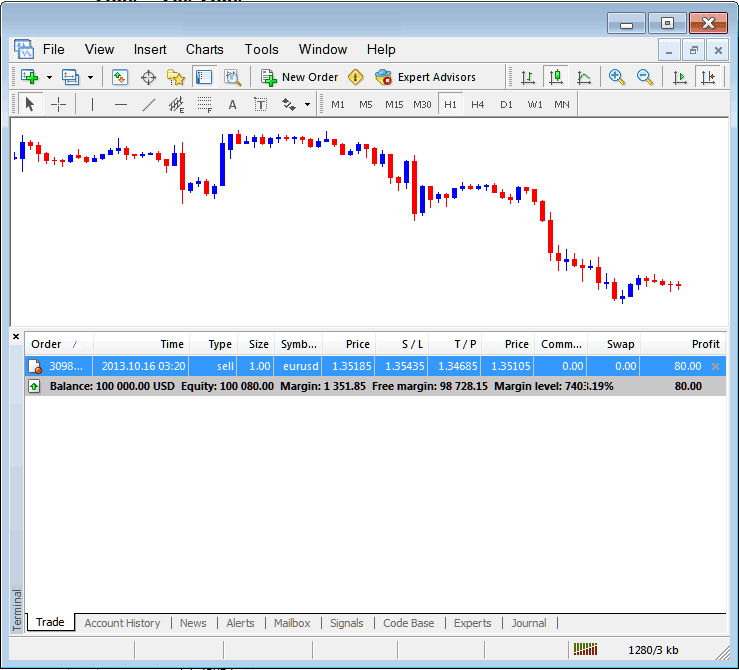
S/L and T/P Order Details Updated on Meta 4 trader Platform Transaction Window
If you were to end the transaction mentioned above now, then the transactions will be updated to show that the transaction is done and the profit has been added to your total balance.
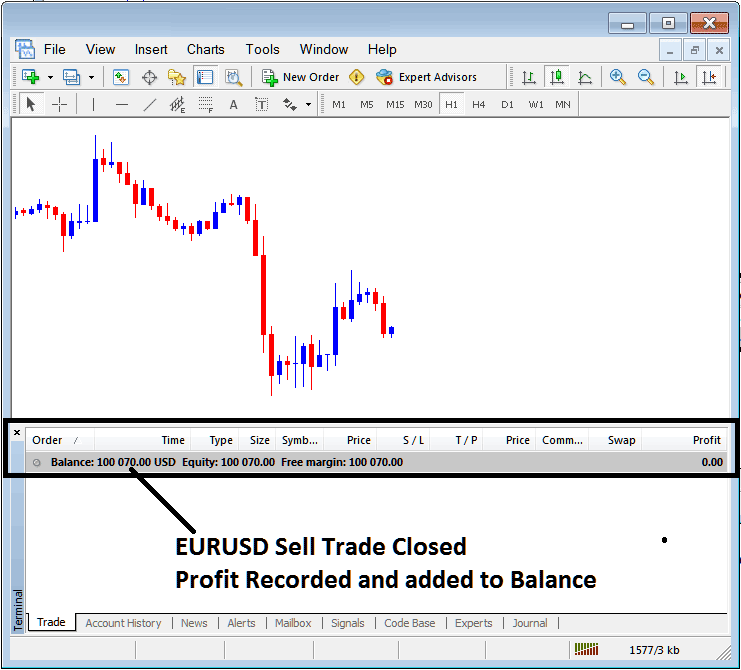
Index Account Balance Updated on MT4 Software
Index Account History
This feature is utilized to generate trade reports for trades that have been previously opened and subsequently closed. It serves as a record of all past transactions.
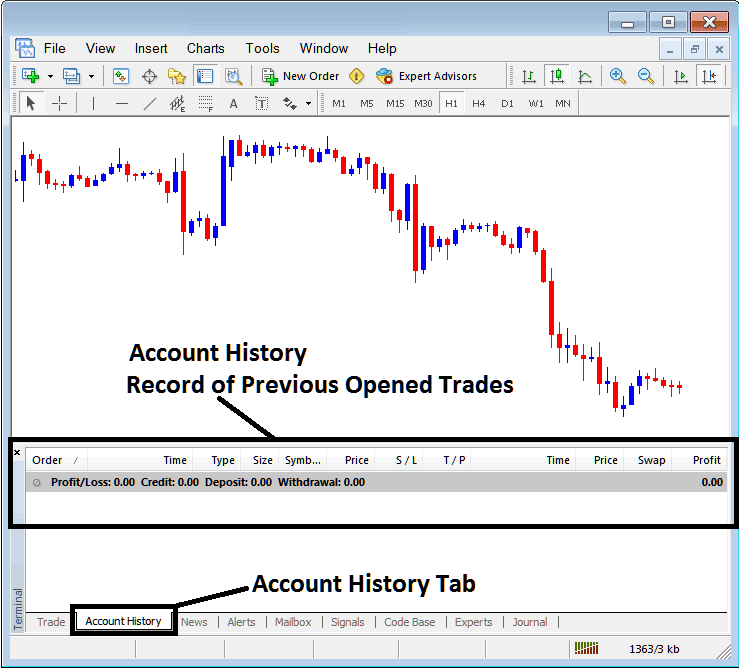
Trade Reports Panel in the MT4 Software
On illustrations laid-out above, there are currently no trade records on this trade history recorded. There needs to be a couple of closed trade position transactions for this record to show some entries.
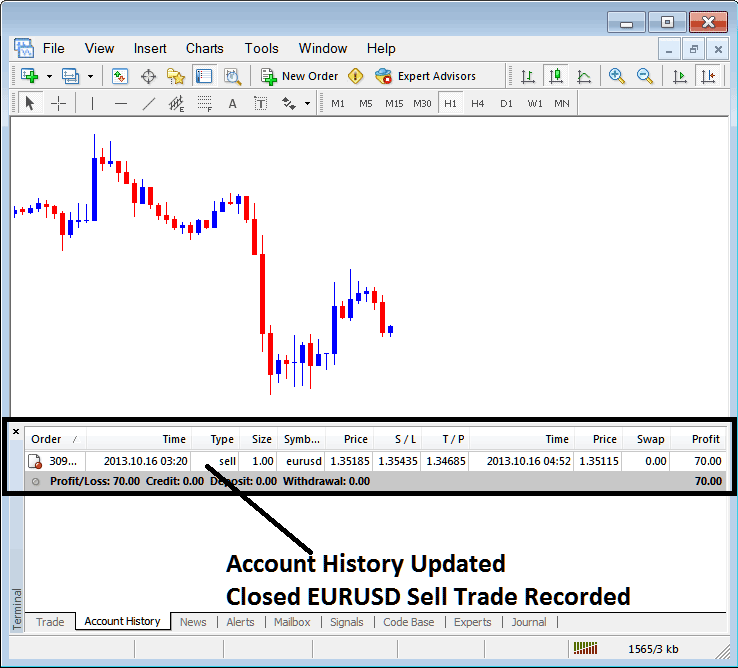
MetaTrader 4 Indices Transaction Recorded on MT4 Account History Transaction Tab
From the examples displayed above, once our open trade order was finalized, the trade position was subsequently recorded as an entry in the "Account History" of the MT4 Platform.
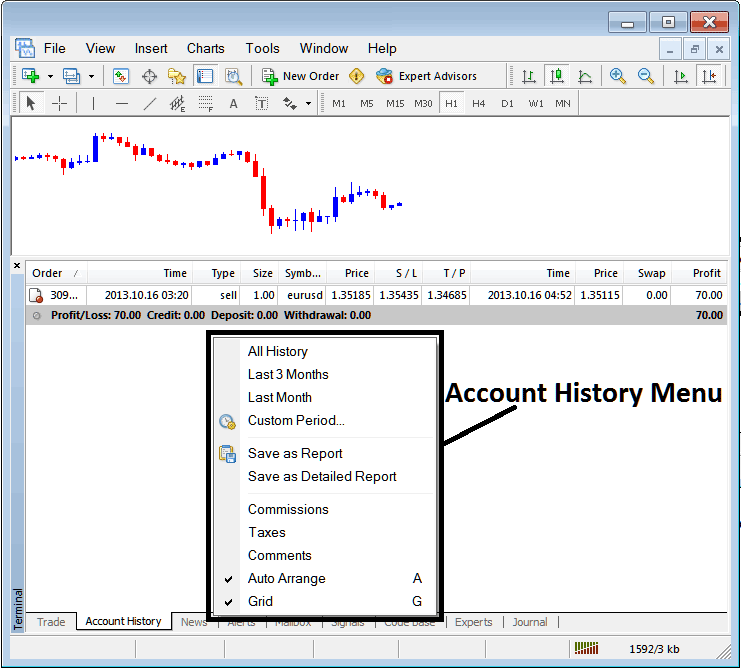
MetaTrader 4 Trading Account History Menu
Index Account History Menu
This menu is displayed above & can be accessed by right clicking anywhere within the account history panel. Last Four (commissions, Taxes, comments, Auto Arrange & Grid are used more for output formatting purposes on the trading platform software but not for trading purposes in general, thenceforth we shall not look at these as they are self explaining)
following six options are Shown Below:
All History, Last 3 Months, Last Month or a Custom Period - all these options can be used to choose time period for which you as the trader wants to generate history of transactions.
Save as Report or Save as Detailed Report. This creates a full list of trades. It includes profit and loss totals, drawdown figures, profit factor, expected payoff for your system, total winning trades, losing trades, average loss per trade, and average win per trade. See the example below.
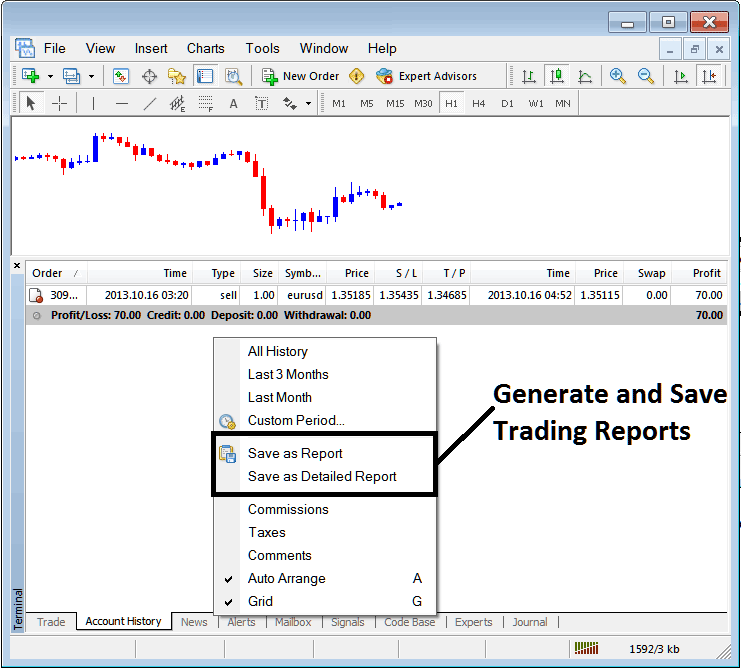
Generating Trade Reports of Your Account in MetaTrader 4 Trader Software
Save as Report
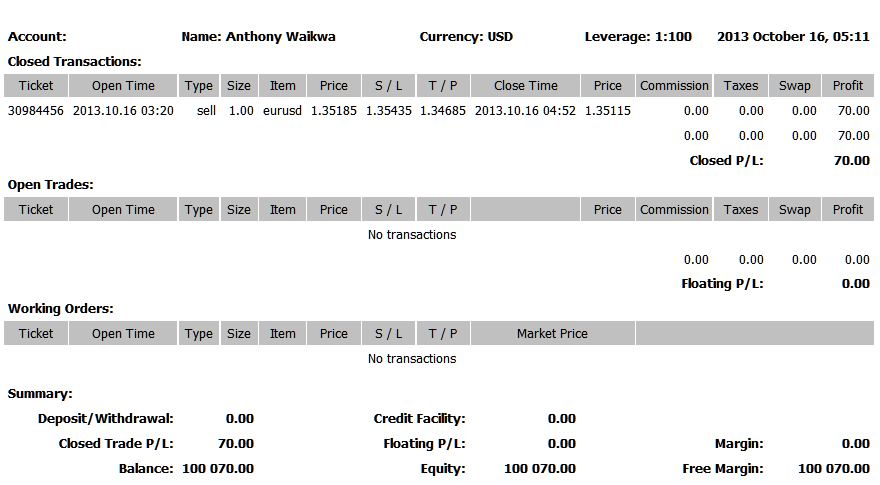
Save as Detailed Report
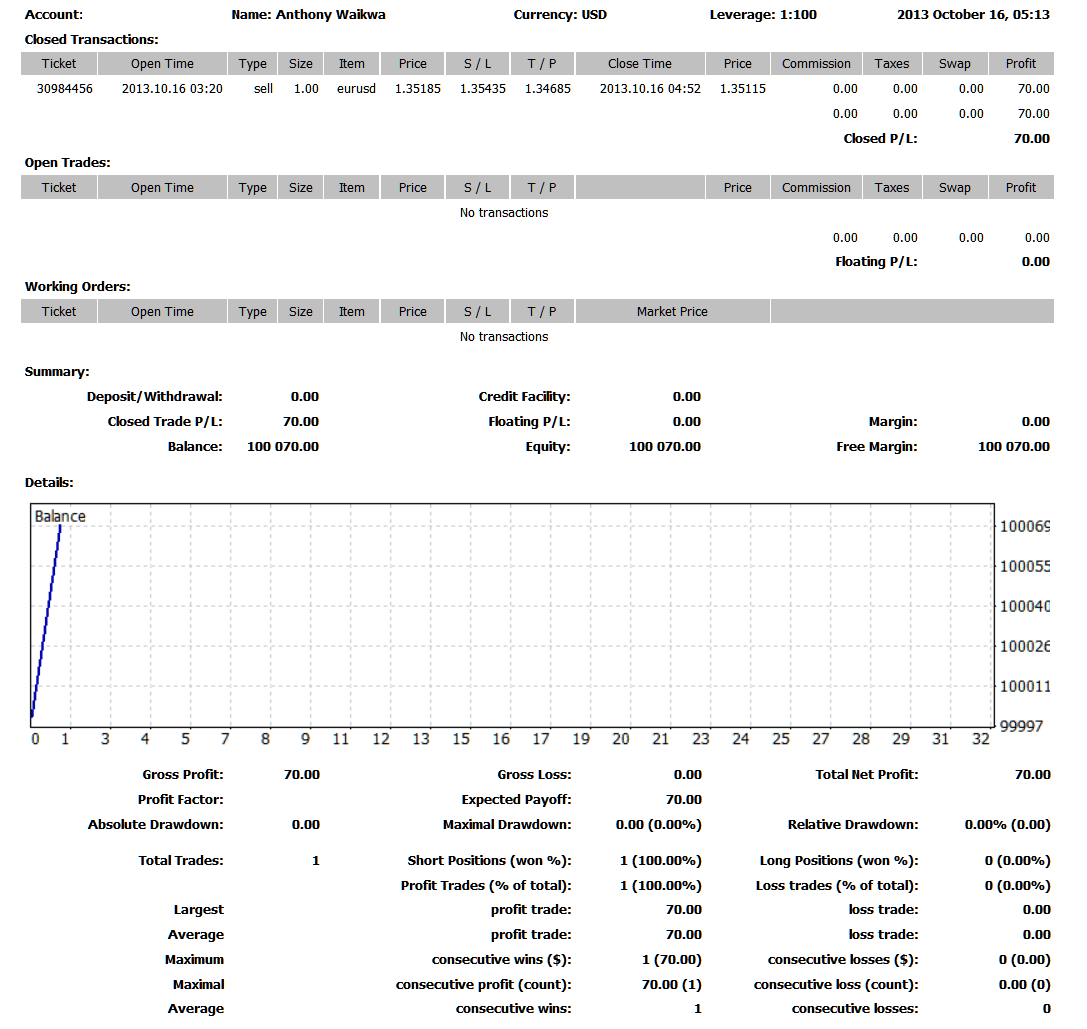
Saving detailed Reports of Trading Trades History on Meta 4 Stock Software
News Tab
This is the third choice in the MT4 Terminal Panel. It shows a list of current news stories given as a news feed by your online indices broker, as shown below.
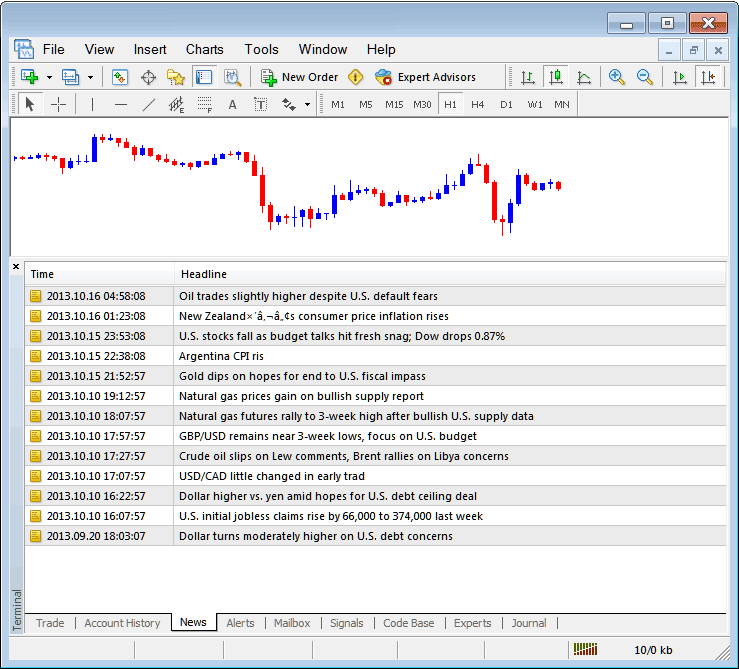
Stock News Stream on MT4
Alerts Tab
This is how you set a warning for the price when it reaches a level you picked. For example, you might use Bollinger Bands, which makes upper and lower lines, and you want a warning when the price touches either of those lines.
For examples, in our above example we may want to put an alert for at 50 pips below the current price, we shall open Alerts Tab, & right-click to activate the menu below:
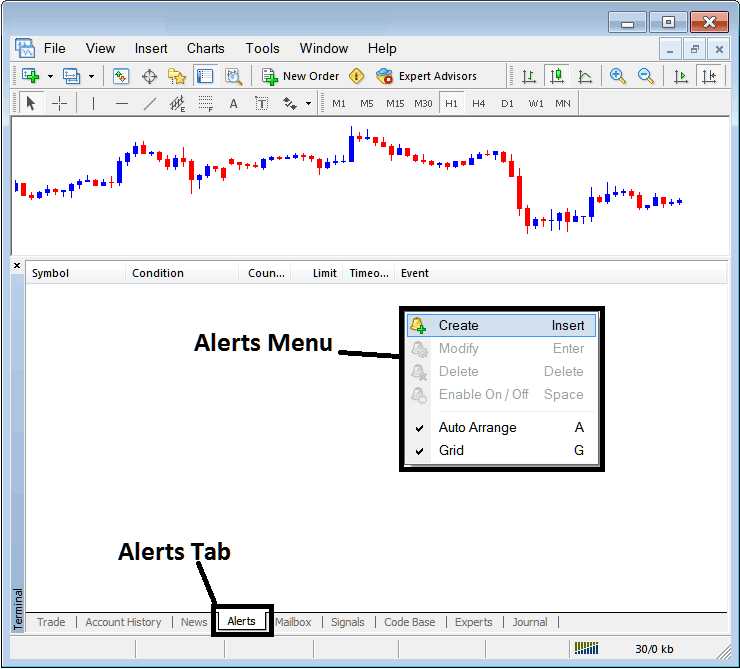
How to Set Price Alerts on MT4 Platform
On above panel, choose, Create and create one as follows:
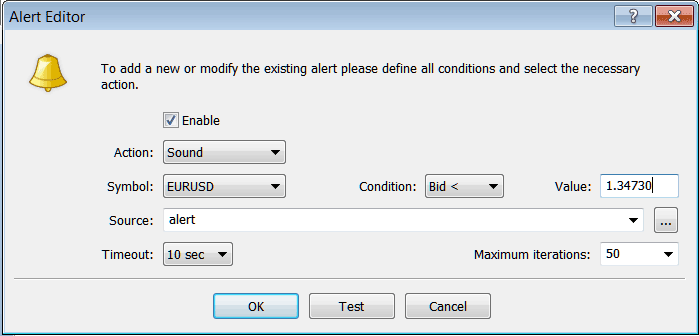
Putting Price Alerts in MT4 Software
Set an alert with sound for specific stock conditions. For example, configure an alert to notify when the bid price drops below 1.34730. Use a sound file with the extension Alert.wav, adjust the timeout to ten seconds, set iterations to a maximum of 50, and click OK to activate.
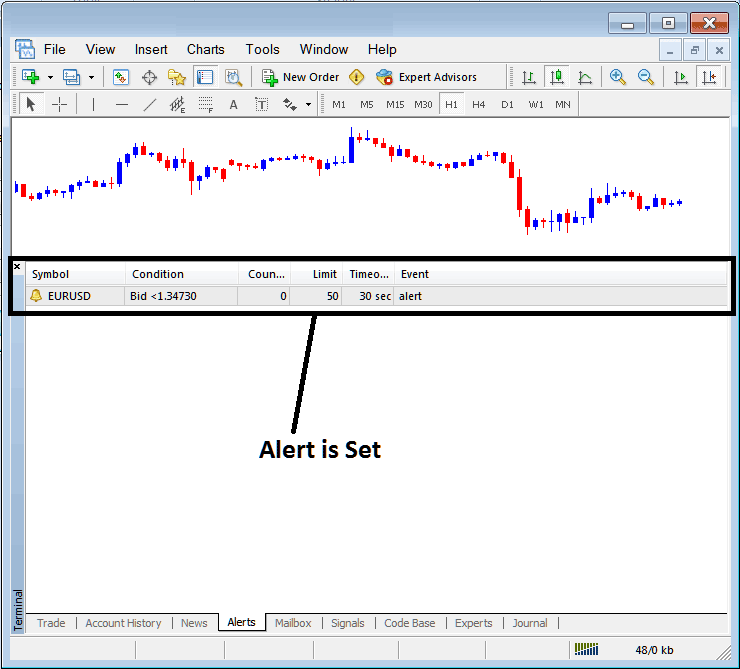
Putting Price Alerts in the MT4
The aforementioned alert is then established, and a notification will sound immediately upon the price crossing beneath this defined technical boundary.
By right-click on this, Alert Menu provides options for adjusting it, deleting it or turning it off. You can download the MT4 & practice opening this option to see how you can put a new alert or delete the alert or modify it.
Mailbox Tab
The mailbox lets you see sent messages in your online software, like this example.
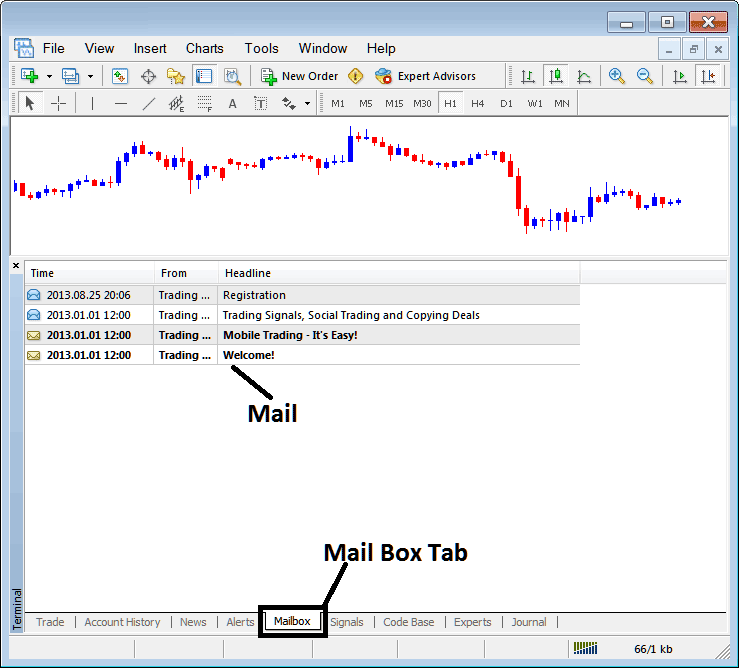
Mail Box in MT4 Platform
Stock Signals Tab
This section contains a roster of Index Signal Providers accessible for subscription directly through the MetaTrader 4 Platform, as shown below. A trader can choose any trading signal provider and select 'subscribe' to begin receiving the associated signals.
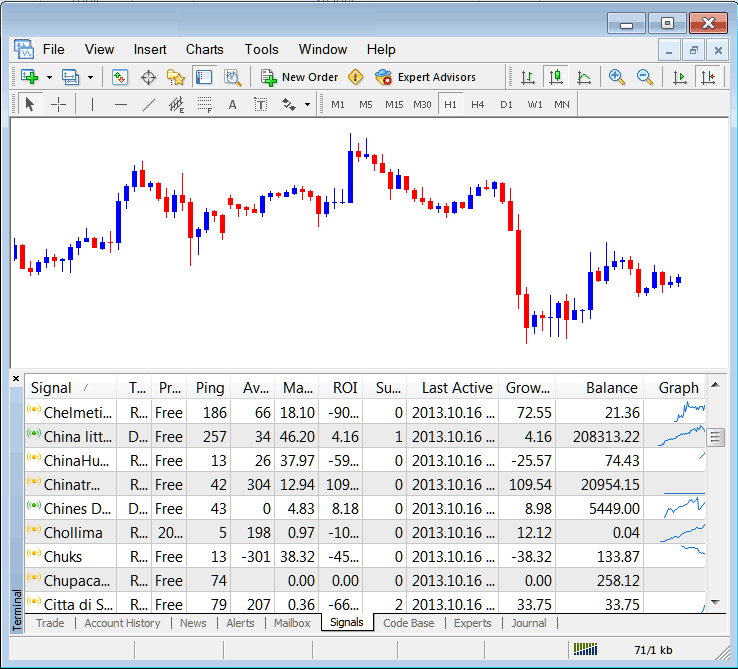
MetaTrader 4 Signals Provided From MQL5.com Website Direct to the Platform
To learn and know more about MT4 MQL5 Signals, navigate to MQL5.com Signals Page.
CodeBase Tab
The Code-Base features a catalog or library of Expert Advisors (EAs) that can be purchased through the MT4 software, allowing users to employ these automated programs for trading indices. These Expert Advisor Bots are configured as Expert Advisors (EAs) within the trader's MT4 software. To utilize these Expert Advisors, one must enable the automated trading option within their software, a topic that will be elaborated upon in the subsequent guide. The Code-Base is illustrated below:
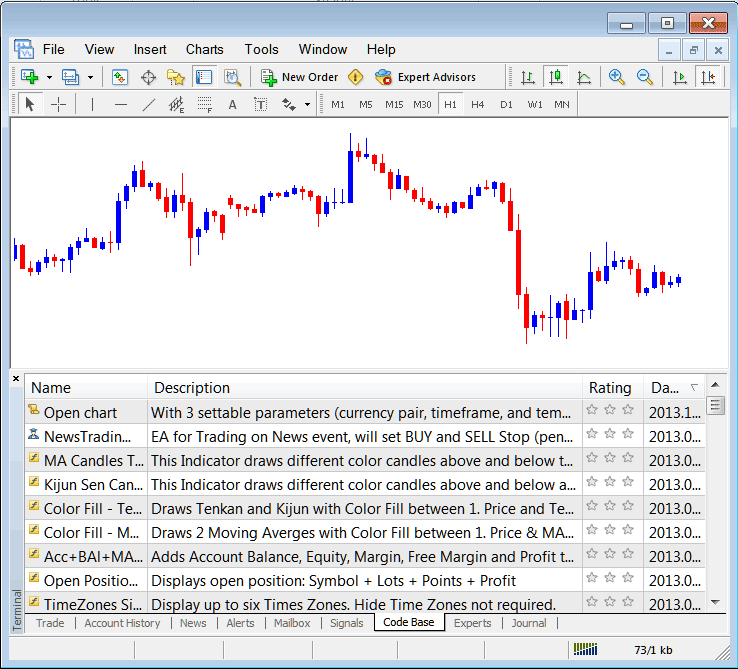
MetaTrader 4 EAs Provided From MQL5 Web Site Direct to the Platform
To learn more about MT4 and MQL5 Expert Advisors, head over to the MQL5 Stock Expert Advisors (EAs) page.
Experts Tab
This displays all the automated trading programs that have been added to the MetaTrader 4 Platform. The picture shown here points out two automated bots that are set up on this trading platform. It also shows the details of each bot, such as trade settings like take profit orders, lot size, trailing stop levels, and all the other special settings of the automated program that has been added to the trading software.
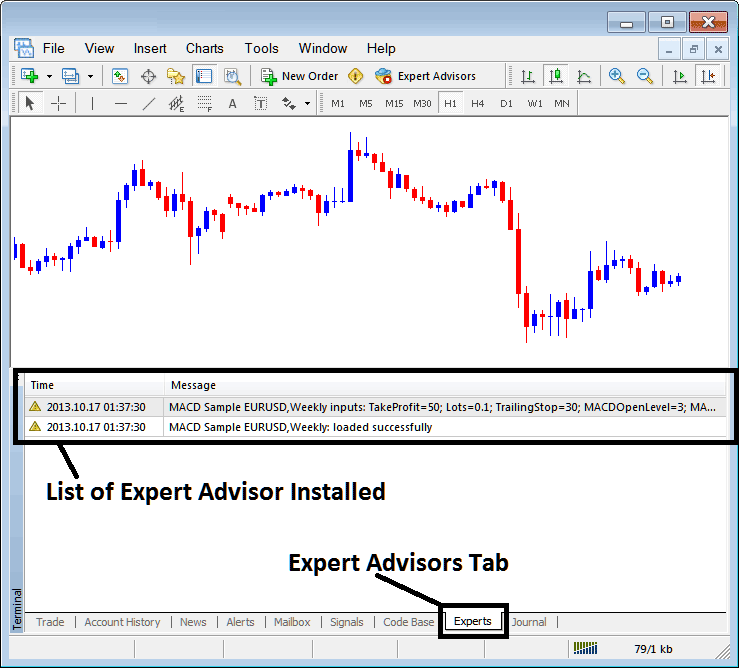
Automated EAs Installed in the MT4
Journal Tab
Tracks login activities of the MT4 and from which computer and IP address of the PC computer used to log in to the software.
This is more on the technical stuff & traders do not use this one a lot and thence we shall not explain it here but you can look at this on your own free time, on your MT4 Stock Software.
Learn More Tutorials & Courses:
- How to Get NKY 225 on MetaTrader 5 App
- GER 30 Strategy Example
- How Can I Add SPAIN 35 on MetaTrader 4 Android Phone Trade App?
- Index Trade DowJones in FX
- Best Index Platform/Software Reviews
- How to Place US 500 on MT4 iPad App
- How Can I Find Nas100 in MetaTrader 4 iPad Trade App?
- How Can I Place FTSE MIB40 on MT4 iPad App?
- Generating Buy Signal & Sell Trade Signal Using Strategy Trade Rules
- Brokers That Provide HangSeng 50 Indices
