Standard ToolBar Menu & How to Customize it in MT4 Platform
Standard Tool-Bar on the MT4 is shown/illustrated below:
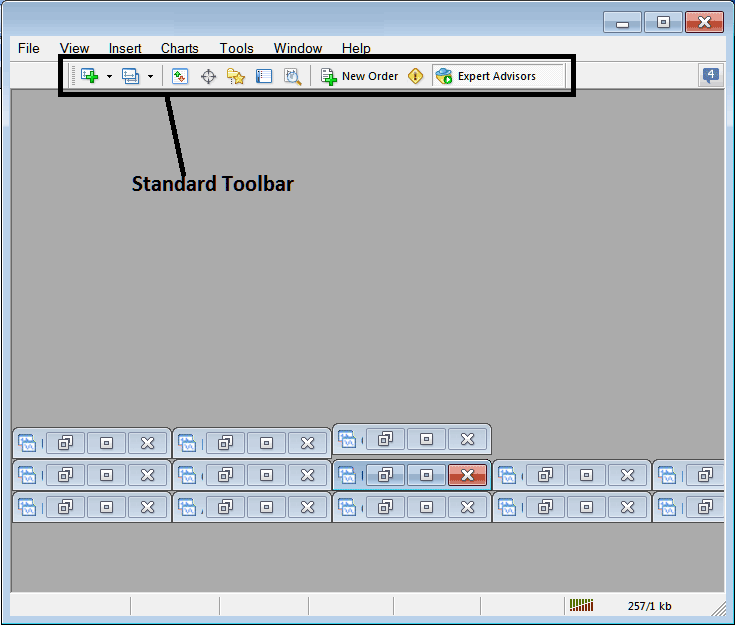
Before detailing how to apply each tool present on this standard toolbar, let's make sure to add all available buttons by personalizing it:
- Right-Click the tool-bar customize button to the left like as illustrated and shown below
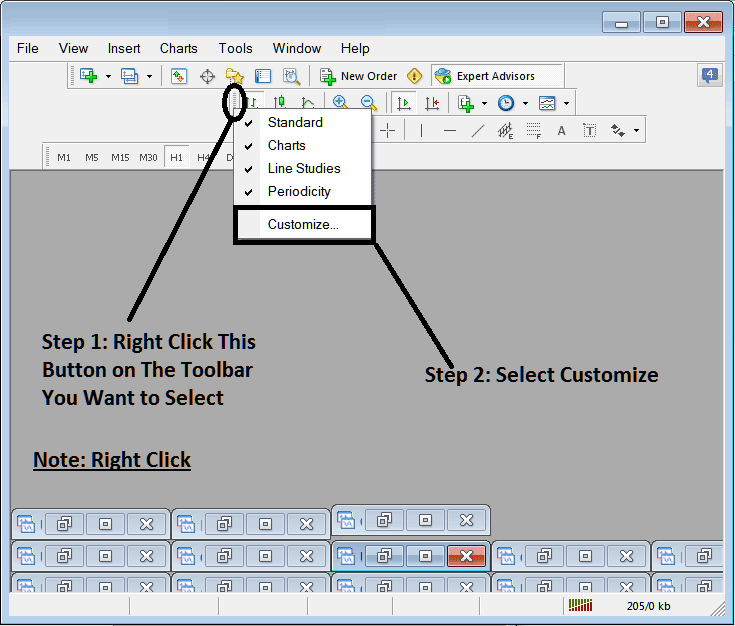
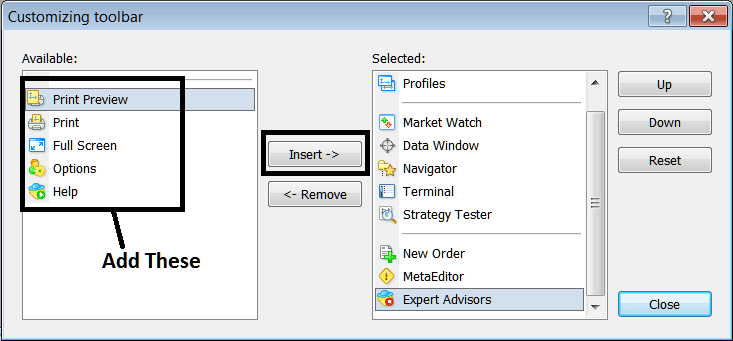
2. Click customize 3. Set all Tools
Add Tools
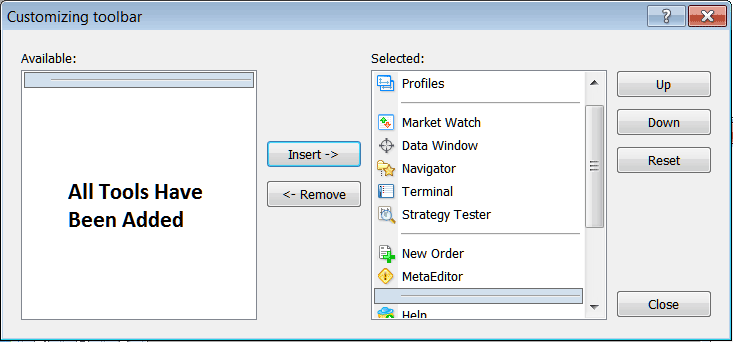
After Adding & customizing, it will look like:
On the trading software, the standard tool bar now looks like:
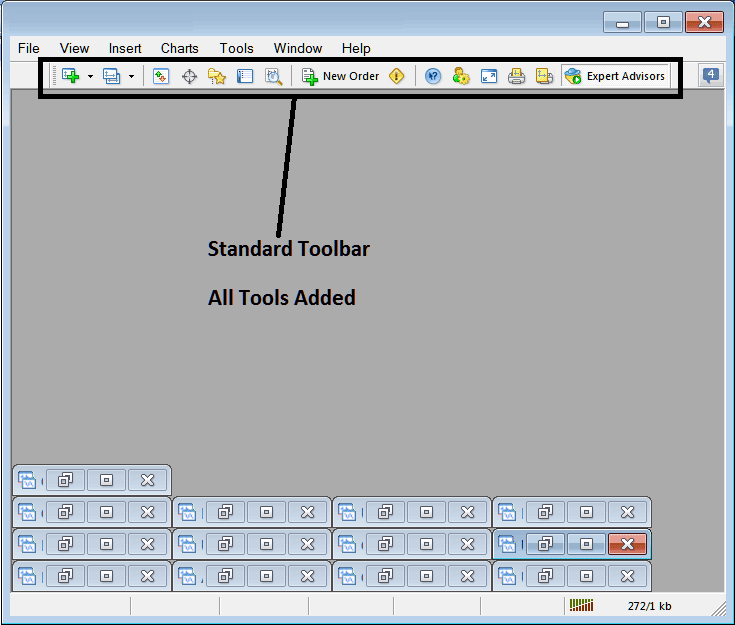
Explanation of Each Tool on the Standard Toolbar

Step 1: Open a chart in MetaTrader 4. A stock index trader picks the chart type from the dropdown next to the icon.
2: Profile - can be used by traders to load a saved profile or to save a new one: these options are provided as a sub-menu on the drop-down arrow.
3: Opening and closing market watch window panel: marketwatch displays the trading quote trading prices for chosen instruments.
Option 4: The data window opens and closes. It shows price info and other details like indicator values.
5: Navigator Shortcut, which provides a display of data related to the Trading Account, indicators, scripts, and Expert Advisors.
6: Terminal panel shortcut, displays the transactions opened by a indices trader - shows open trades, balance, account equity, transaction history, news, Expert Advisors(EAs) tab, signals tab and trade alerts tab.
7: The strategy tester starts, and traders can try out their Expert Advisors (EAs) in this fake, test environment that mimics the market.
Option 8 opens a panel for new trade orders. As a stock index trader, choose the asset, lot size, and order type. Pick market or pending orders.
MetaEditor launches the editing workspace. Traders use it to create or add an Expert Advisor (EA) or a custom indicator.
10: For Help, if you're unsure about something on MT4, click here and point to any MetaTrader 4 item to get an explanation.
11: Options settings for editing MetaTrader 4 options that are used by your platform, these settings are the server settings & Expert Advisors settings found under main navigation menu on tools menu, options sub menu.
12: Full screen option for setting the trading chart to full screen option, Short-cut is Key-board Key 'F11'
13: Print Chart
14: Print Preview
15: Expert Advisors - starts and stops automated systems on a graph: pressing this button changes its color from green to red: green means an automated system is working, and red means it is not.
Remove Buttons
As someone who trades, you won't need all of these buttons, so you can hide some. To do this, click customize (as shown above), pick items from the right window, and then select hide.
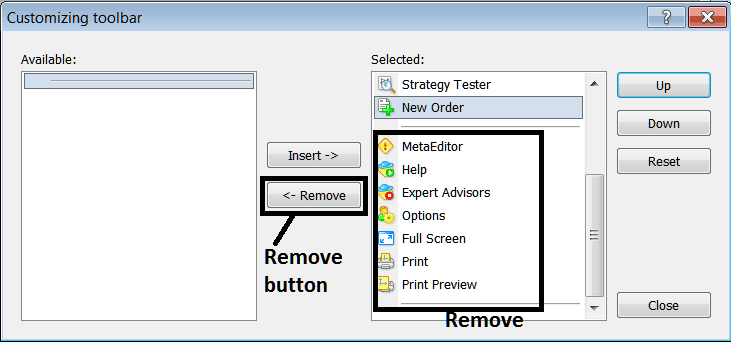
Remove the above tools by clicking on them and clicking remove button.
Study More Lessons and Tutorials and Courses:
- How Can I Find GER 30 in MetaTrader 4 iPhone App?
- Placing Channels in Stock Index Charts in MetaTrader 4 Software Platform
- How Can I Add SPAIN35 on MetaTrader 4 Android Trade App?
- Stock Index Sign Up for a Live Trading Account Index
- Example of How to Know When a Stock Index Down Trend is Starting
- Fib Extension Settings
- Index Day Stock Index Candle Patterns Lesson Tutorial
- Back-Testing Index Trading Methods
- Developing a Indices Trade System: Indicator Based Stock Index Trading Strategy
