Free MT5 CFDs Charts Guide
On the MT5 'View' menu, the second button key on the dropdown menu list is 'Tool bars' button. This MetaTrader 5 toolbars button is used to choose the chart MetaTrader 5 toolbars to place on the MetaTrader 5 interface.
The main toolbars are; Standard Toolbar, Charts Toolbar, Line Studies Toolbar and Periodicity Toolbar as shown below. By clicking the MT5 toolbar button, these cfd MT5 tool bars are shown to the right of this 'Toolbars' button.
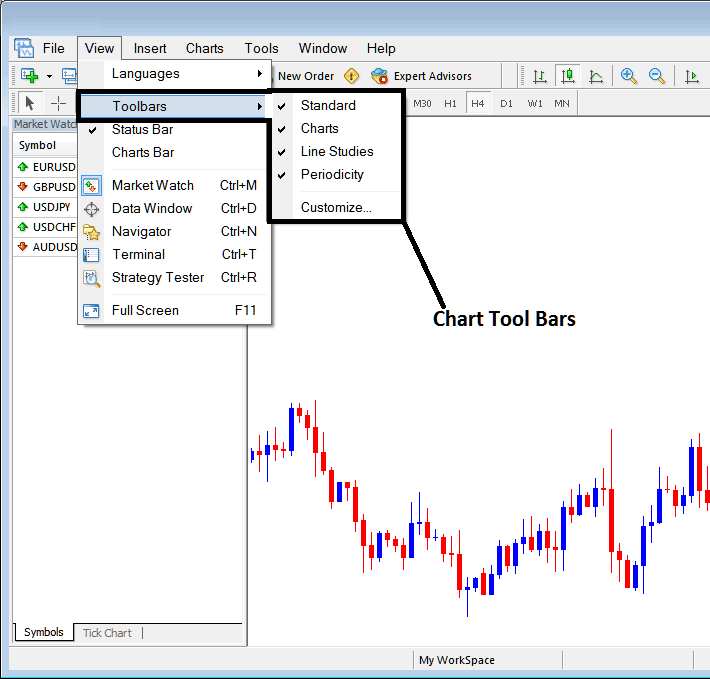
To add a MT5 toolbar on the MT5 platform interface, just check or tick the specific toolbar. To remove the MT5 toolbar just uncheck the MT5 toolbar you want to remove.
On the MT5 the following examples shows what toolbars are:
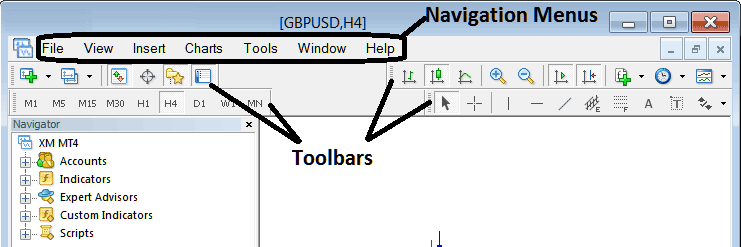
The Four toolbars on MetaTrader 5 platform are:
- Standard Tool Bar
- Charts Tool Bar
- Line Studies Tool Bar
- Periodicity Tool Bar
These MT5 tool bars are shown below, as a trader you can drag and drop these MT5 tool bars by clicking your mouse at the left side of these MT5 tool bars, on the place that look like a stack of coins on each toolbar, click hold, then drag to where you want to place the MT5 toolbar on the MetaTrader 5 Platform then drop. As an exercise you can try to rearrange and arrange back these MT5 toolbars on your MetaTrader 5 Platform.
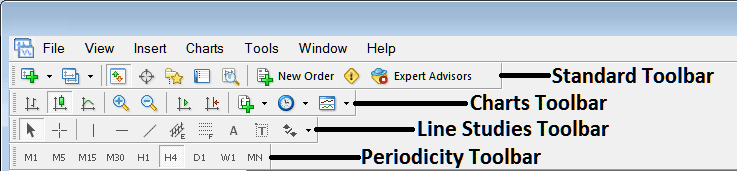
MT5 CFD Platform Tool Bars is a wide topic, and each button on every MT5 toolbar is used differently, the explanation of what these tool bar MT5 buttons are and how to use them will be covered in another learn cfd topic concentrating on MetaTrader 5 tool bars alone, explaining each MT5 toolbar and each button on each toolbar.
Also Read The Topic : Customizing Tool Bars on MetaTrader 5