Place MACD in Chart on the MT4 Platform
This learn course will explain how to place MACD on a chart in the MT4 Software. For Technical Analysis: Technical Analysis of MACD.
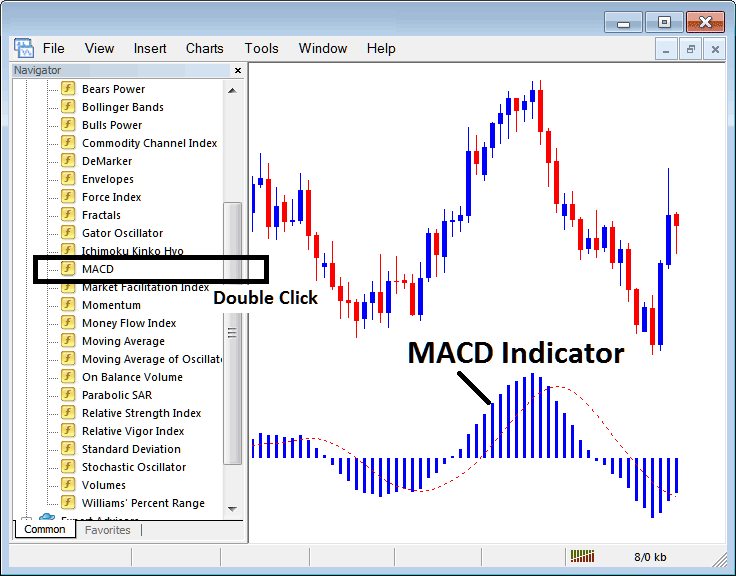
How to Set Indicators in MetaTrader 4 Charts
Step 1: Open The Platform Navigator Window
Open Navigator window panel like is shown and illustrated below: Go to "View" menu (click on it) & then select & choose "Navigator" window (click), or From Standard Tool Bar click the "Navigator" button or press short-cut key board keys "Ctrl+N"
On Navigator panel, select 'Indicators', (Double-Click)
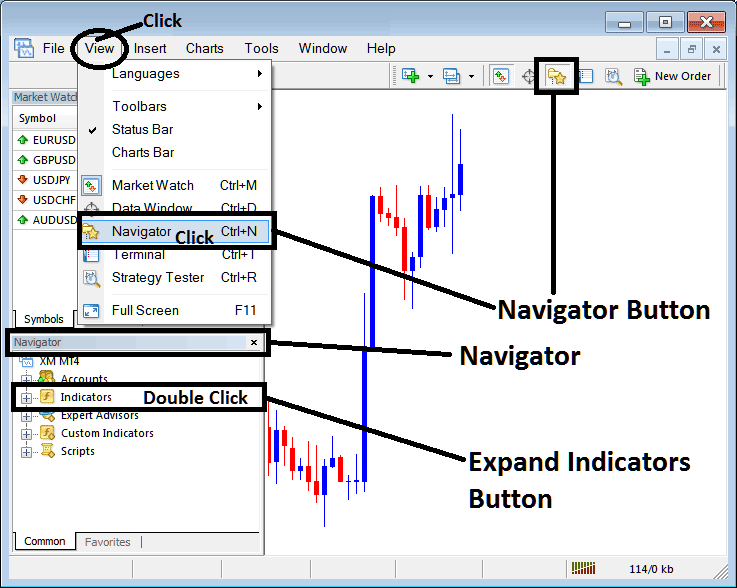
Step 2: Expand the Indicators Menu in the Navigator
Make the menu bigger by clicking the plus sign ( + ) or double-clicking the "indicators" menu. After that, this same button will change to a minus sign (-) and will show a list as seen below.
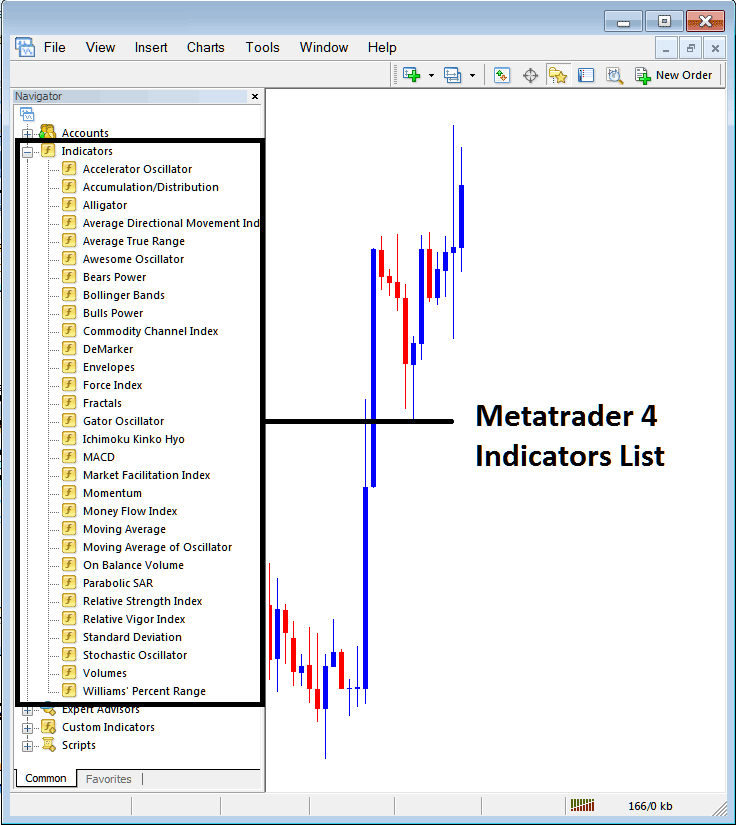
From the aforementioned panel, you are then free to superimpose any technical indicator you, as a trader, wish to apply onto the chart surface.
Placing and Adding MACD on Chart
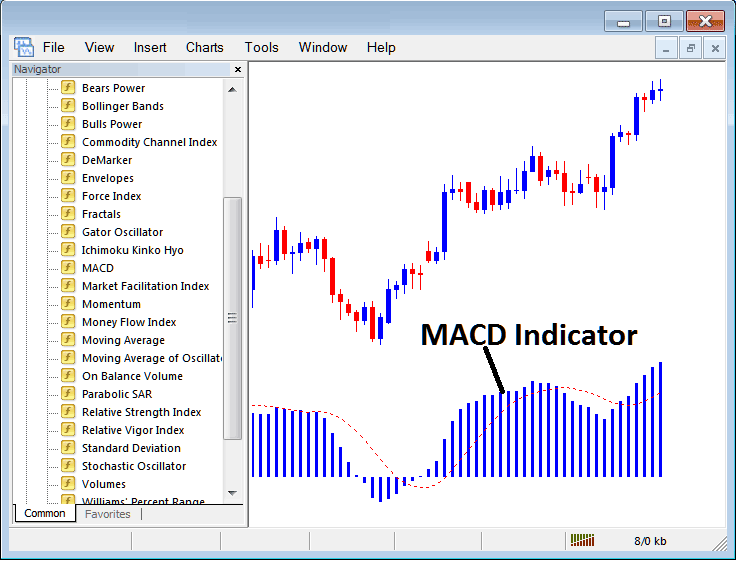
Step 1: Click the MACD button in the MT4 indicators list. Check the display below.
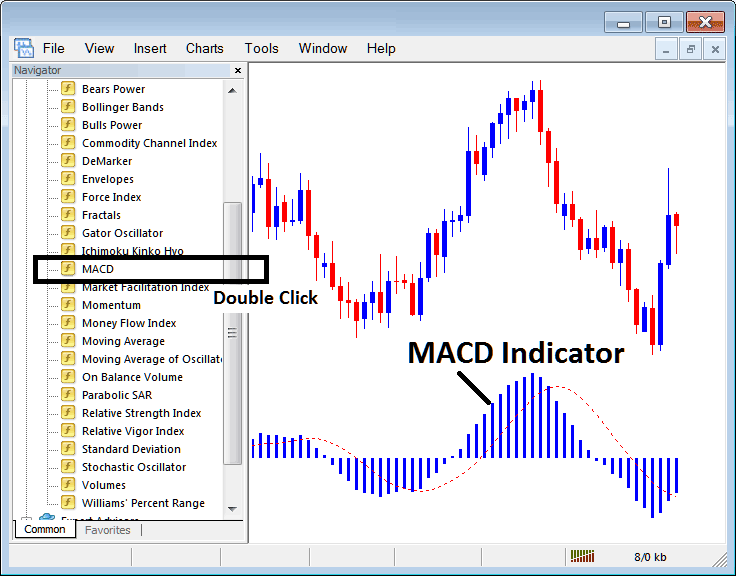
Step 2: Double-click the MACD button and click OK to apply it to the chart, as shown.
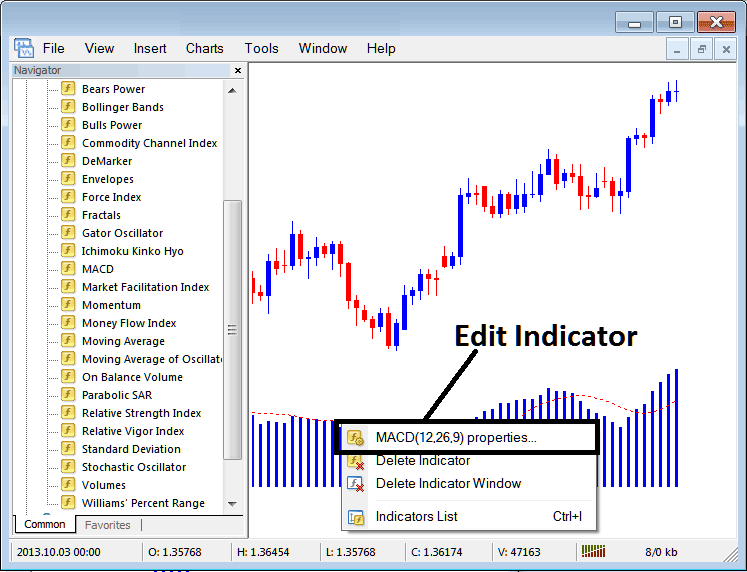
Edit Indicator Setting
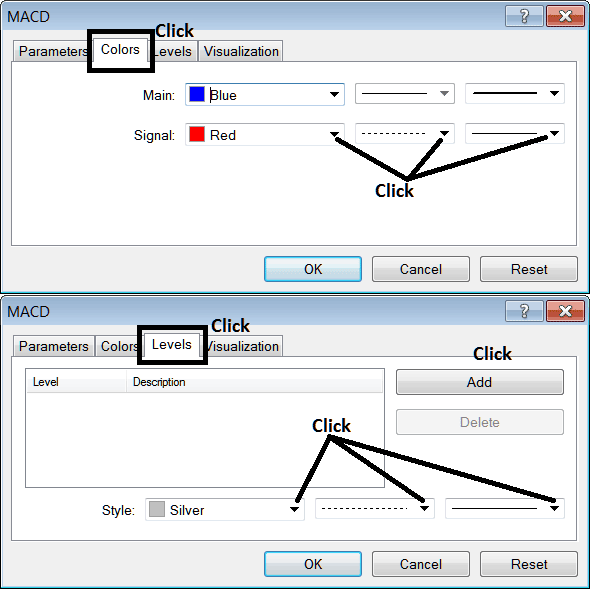
To adjust the MACD settings, just right-click on the indicator, choose property settings, make your changes in the popup menu, and hit OK.
The following window popup appears & MACD parameter settings can be edited using this popup panel.
Study More Courses & Tutorials:
- Index Brokers Type
- What's SWI20 Pips Value?
- How Can I Add FTSEMIB 40 in MT5 Android App?
- How Can I Find DJI30 in MetaTrader 5 Mobile App?
- How to Identify a Double Tops Setups
- How to Use Zigzag MT4 Technical Indicator on Index Chart on MT4 Software
- How to Place US100 on MT5 Android App
- How Can I Trade EUROSTOXX 50 Stock Index Online?
- Coming Up with a Simple Index Trade Strategy
- Where to Find CAC40 in MT5 Software Platform
