CFDs Account MT4 Download
To start cfd with the MT4 cfds trading platform, you need to follow steps listed below:
CFDs Account MetaTrader 4 Download
Install MetaTrader 4 CFD Platform on Your PC.Open a cfds trading account on the MT4 platform. Log in to the MT4 CFD Account with your cfd account login credentials Open CFDs Charts and place CFD Trades using the MT4 CFD Platform.
CFDs Account MT4 Download
After you Download MetaTrader 4 CFD Platform from your cfd broker you will then need to open a MetaTrader 4 CFD Account to trade with.
How to Open a Demo Account using MT4 CFD Platform
- Download MT4 CFD Platform - MT4 CFD Platform.
- Setup the MT4 CFD Platform.
- Open the MetaTrader 4 CFD Platform.
- Enter the Login Details: Account Name & Password for the Demo Trade Account
- Open CFDs Charts and start practice trading.
- If you do not have a cfd practice account you can register for a demo trade account using File menu, Click New Demo Account Registration and enter your details and sign up for an MT4 cfds trading account.
How to Open a Real Trading Account in MT4 Platform
- Download MetaTrader 4 CFD Platform
- Install MetaTrader 4 CFD Platform on your Computer.
- Open the MetaTrader 4 CFD Platform on your Computer.
- Click on the File Menu & Select Open an Account.
- Choose The Real Trading Account Option.
- Fill in the real cfd account opening form.
- Enter you cfd account log in details for the Demo practice account.
- Trade CFD from the free MT4 cfd charts provided.
MT4 CFDs Platform Introduction Guide
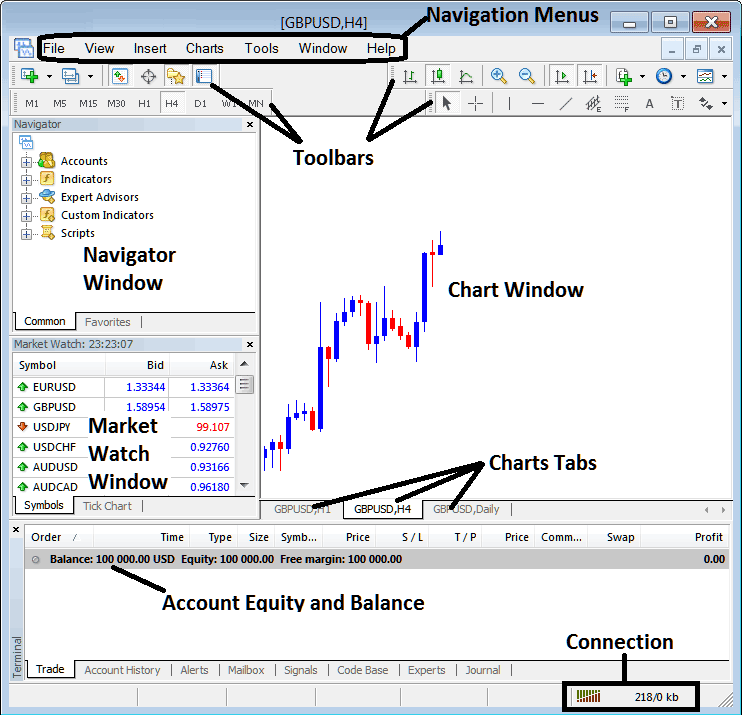
The following screen-shot below shows the main MT4 cfds trading platform inter-face. As a beginner cfd trader trying to learn how to execute cfd orders in the online cfd market, the main tool for trading the online cfd market is the MetaTrader 4 cfds trading platform software. This is the software which you will connect to your online cfd broker and execute cfd trade transactions & monitor your cfd account balance from this cfd MT4 platform software.
The MetaTrader 4 cfds trading platform is provided for free through the various cfds broker websites. This MT4 software looks like the cfd example shown below:
Trading CFDs Get Started with MT4 CFDs Platform? - CFD Account MT4 Download
Main Areas of this MT4 cfds platform as illustrated above are:
- Navigation Menus
- Toolbars
- Chart Window
- Navigator Window
- Market Watch Window
- Terminal Window
- Connection Bars
For this MetaTrader 4 cfds trading platform tutorial we shall look at a brief introduction for each of these how to use MetaTrader 4 cfds platform courses:
1. Navigation Menus
The navigation menus are:
- File
- View
- Insert
- Charts
- Tools
- Window
- Help
These are the main navigation menus which can be used to navigate MetaTrader 4 platform. As a cfd beginner trader you can begin by clicking on any of these navigation menus to familiarize yourself with various button keys that are arranged as sub menus within these navigation menus.
These navigation menus will be described in details in the next MT4 cfds trading platform guide for beginners about navigation menus.
2. Toolbars
This how to trade in MT4 explains the tool bars are used to manipulate trading charts, either by placing indicators, line studies, change cfd chart timeframes and load an MT4 template from a list of saved templates.
These tool bars will be discussed on other how to use MetaTrader 4 cfds platform tutorials which will outline each button on this tool bar and how to add and customize these tool bars.
3. Chart Panel
This is the main area where cfd charts are displayed & a trader can analyze the cfd trend direction of a cfd chart whether up or down, place indicators on cfds charts for technical analysis and even place orders from these cfds trading charts.
4. Navigator
Navigator MT4 cfds trading platform tutorial will contain information about cfd accounts, whether demo MT4 cfd account or real MT4 cfd account, this window will also have a list of all the MT4 indicators as well as Expert-Advisors and scripts.
A trader can choose which cfds account to log in to by expanding the Accounts menu, choose an technical indicator by expanding the technical indicator menu or choose an EA by expanding the EA menu.
5. Market Watch
Market watch cfd MT4 tutorial - Market watch is used to show streaming quotes for trading instruments. This window can list as many quotes provided by your cfd broker or a few that are selected by a cfd trader. To save inter-net bandwidth, right-click inside the cfd market watch window panel & select 'Hide All', so as to hide the trading instruments that you are not trading & save on inter-net bandwidth.
6. Terminal
This is the window panel that's like the bank account trade area for your cfd trade transactions, on this window you can view your balance, profit & losses statement, equity, margin used also retrieve a copy of all your cfd transactions history.
This will also list all open cfd trade transactions & calculate all the profit and loss in real-time as the cfds prices move upward or downwards.
7. Connection Bar
Red bars are for no connectivity, green bars show that there's connectivity to the servers and cfd trade orders can be set. These connection bars should always be green when one is logged into their MetaTrader 4 practice cfd account or MT4 live trading account.
These main areas form the MetaTrader 4 CFD Platform interface & will be the main areas to be covered in detail in the next learn cfd MT4 platform tutorials. For now it is best to download MT4 software and familiarize yourself with the software interface.
Why CFD Software is Required for Placing CFD Trade trades with Brokers
Cfd trading platform is software that is used to access the cfd market and interpret these cfds price movements using technical analysis cfd charts. There are various reasons why a trader requires to use a good cfd platform. A good cfd platform can determine if a as a trader you make profit or not.
So why does a trader need a good CFDs platform:
To connect to the Trading Server:
To place a trading order a trader needs to use a cfd platform which will connect to the trading servers of their cfd broker & allow them to open and close orders. Good cfd platforms will connect with ease to the brokers' servers & allow traders to place orders at any time from desktop PC computer.
To analyze cfds charts using technical analysis
To open buy or sell order one needs to first interpret direction of a cfd. This is why all good cfd platforms provide technical cfd tools such as cfds price charts, technical indicators and various different chart time-frames from which a trader can analyze cfds price moves using the chart timeframes of their choice.
How to Use MT4 CFD Platform Tutorial - CFD Account MT4 Download
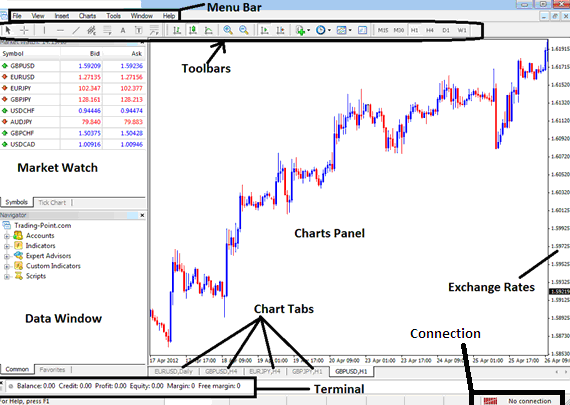
From above MetaTrader 4 cfds trading platform inter-face, the summary of all data required by a trader is provided on this MetaTrader 4 cfds platform interface
- Connection - connection to the broker servers
- Charts - price graphs which display cfds prices
- Toolbars - toolbars to add technical analysis tools & technical analysis cfd indicators
- Market Watch - for displaying available financial instruments
- Data window - provides cfd account information & other technical cfd technical indicator data
- Exchange rates - shows current market cfds price on a cfds trading chart
- Menu bar - Shows all menu items on the platforms
How to Use MT4 CFD Platform Tutorial - CFD Account MT4 Download