How Do I Log onto MetaTrader 4?
- Select the 'File' Menu
- Select Accounts & Click "Log In"
- Type your CFDs Log in Account Number & Password.
- Select the correct server - Demo CFD Account select Demo Server, Real CFD Account Choose Real Server.
- Choose the checkbox "Save the Account Data Information".
- Press Login Button.
Trading CFDs Login onto MT4 CFD Platform? - CFD Account Login MT4 Requirements
MT4 CFDs Platform Tutorial
Before placing any trade on the MetaTrader 4 cfds trading software, you'll be required to log in to your cfd account and get authenticated before gaining access. Authentication is checking to see if the details you provide for Username and Password are correct details.
To begin trading on MetaTrader 4 platform, just click on 'File', then tap and click "Sign in" button key from the file drop down menu as illustrated below.
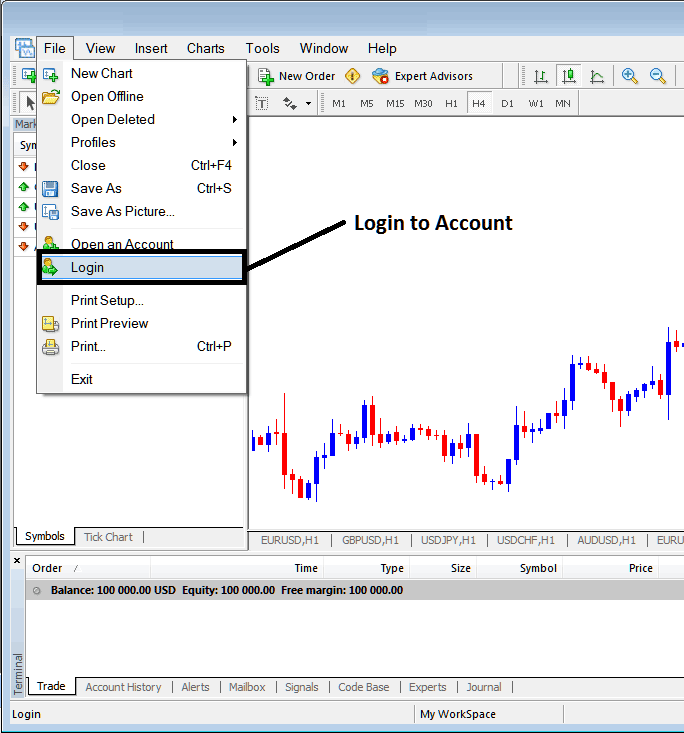
Log in to MetaTrader 4 Online CFD Platform
As a trader once you click this log in button key, then a pop up window panel will pop-up prompting you to in put your CFD Account Username and Password as shown below:
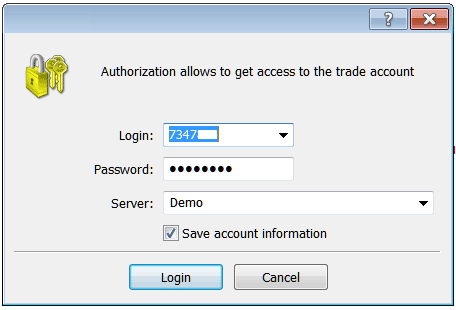
CFD Platform Login - Trading CFDs Login onto MT4 CFD Platform? - CFD Account Login MT4 Requirements
Once you in-put your CFD Account Username and Password you will then have to select the trading server: because this is a demo cfds trading account, for this instance you will then select 'Demo', if it was a real cfd trading account/live cfds trading account then you would have to select 'Real' Server on this option by clicking the drop down arrow on the right side of the above text box on the MT4 platform.
Then check box 'Save Account Information'
Then Click 'Sign in'
Once you click sign in your MT4 cfd account details will be authenticated and you will then have access to your MetaTrader 4 cfd account & when logged in to your trading account you can begin to trade and place new orders in cfd market on the MT4 platform. If you do not have login details you can get these details by signing up a demo practice cfds trading account with a broker.