How to Save MetaTrader 4 Template Trading System
On the MT4, you may want to save the your Metals workspace or the the metals system that you're trading with so as to easily load it the next time you login.
Also Check : Saving a Template on MT4
On the Metal Platform There are Two Ways For Saving
The Work Space - The workspace is the charts that you have opened along with the information on these charts such as the attached metals trading systems. Saving a work-space will save all this information & you as a trader can use easily load this data any other time in your platform software.
On the workspace button on the MetaTrader 4 (illustrated below) a trader can save several different work spaces & load them at another time.
The Template - The template in other words is the metals trading system you are using to trade with. For example you have just placed a set of 4 indicators on your metal chart, but you also trade other charts & you don't want to redo all the work of putting the same indicators on the other charts all over again, so what do you do? You save it as a template & then load it on the other charts. But how does a trader do this on the Metals Trading Platform MetaTrader 4.
Template and Work Space on MT4 Platform
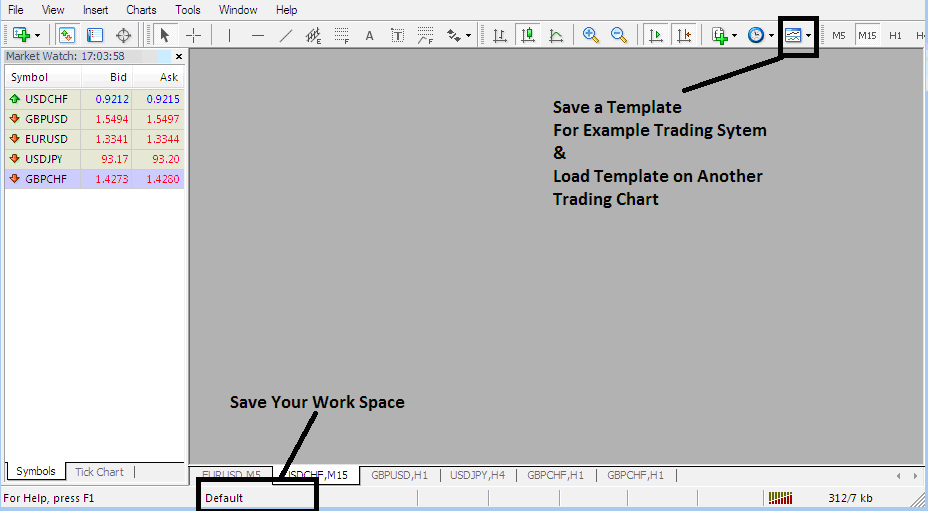
Saving a Metal System as a Template MetaTrader 4
From screen-shot below all a trader has to do is to click the buttons below Templates Icon & select the 'Save Templates' Button.
Saving a Template in MetaTrader 4 Platform
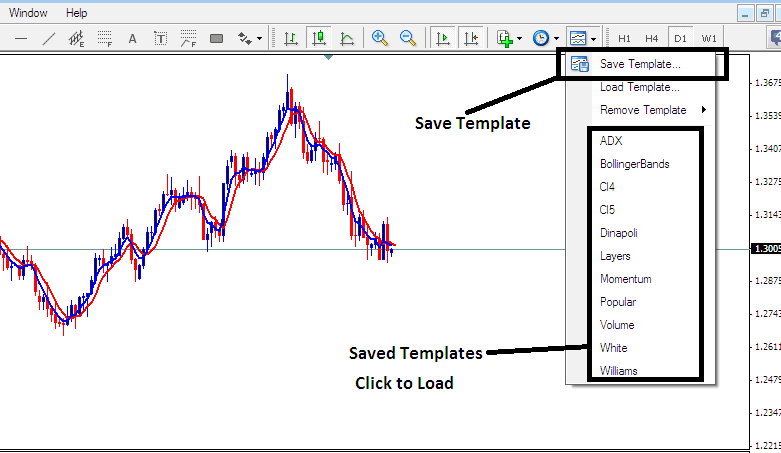
Saving a Template in MetaTrader 4 Platform - How to Save MetaTrader 4 Template Trading System
If as a trader you want to save the above metals trading strategy on your MT4 metal trading platform software, click the templates button as shown above, then select "Save Template" as shown above, then specify the "name" of the metal system & click 'okay'.
To load a template on another metal chart, click the "Load Template Button" as shown above, then select the path of where to load the metals trading system from. You can even select to download a metals trading system template, if you have downloaded, or want to select a metals trading template that is saved from another MetaTrader 4 of another metals broker within your computer drive C: / Programs / MetaTrader 4 / templates / Name of System.
To load a template, there is a shortcut list of saved templates click on item on the short-cut listed to load it.
Saving a Workspace
To save a work-space (not a template) which is a collection of the open metal charts and all the metals technical indicators attached to these metals charts on the Metals Software, Click the 'Save Workspace' button key shown below.
MetaTrader 4 Metal Platform Workspace - How to Save MetaTrader 4 Work Space Metals Charts
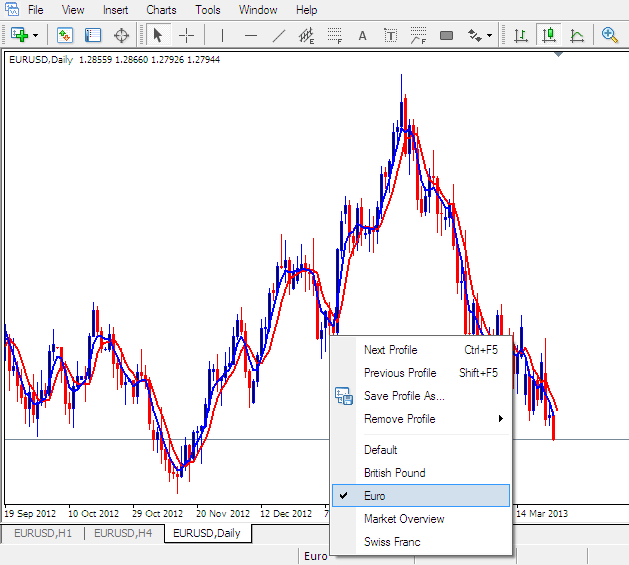
Load a Workspace in MT4 Platform
Saving the above Workspace - Click 'Save Profile' , and choose the profile with the name 'Euro'
To load this Work Space anytime, click the short-cut above that is marked 'Euro'
To load the British Pound Workspace , click the above short cut that is marked 'British Pound'
When trading metals you can "load" or "save" a template or workspace and then place it on another metals chart by simply clicking on a single platform button provided as shown above, this makes it is easier to trade with the MT4 Metals Trading Software.