Place On Balance Volume(OBV) Technical Indicator in Chart in MT4 Platform Software
The OBV volume technical indicator can be utilized as a trading reversal indicator, an indices trading exit indicator, or an indices entry indicator. The On Balance Volume indicator may be installed on a chart on the MT4 platform - MT4 software - by following the instructions in this course.
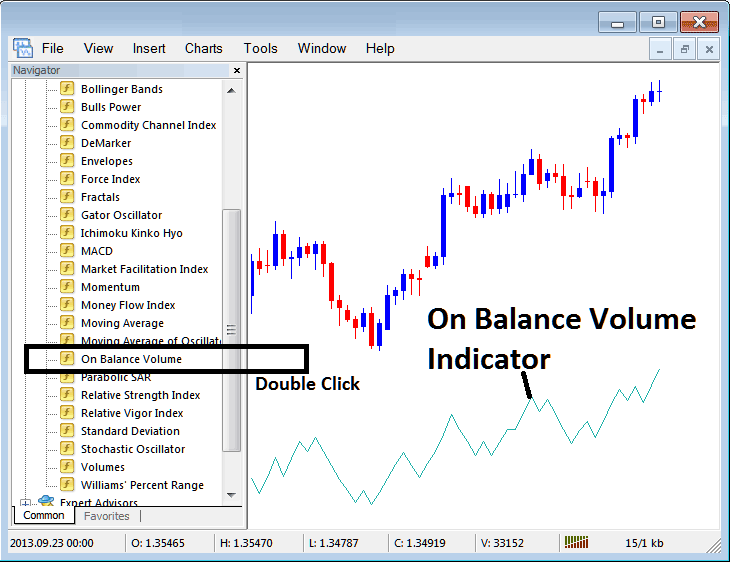
How to Set OBV Indicator on MetaTrader 4 Charts
Step 1: Open The Platform Navigator Panel
To open the Navigator panel, go to the "View" menu and click "Navigator," or just hit the "Navigator" button on the Standard Toolbar. If you like shortcuts, press "Ctrl+N" on your keyboard.
On Navigator panel, choose 'Indicators', (Double-Press)
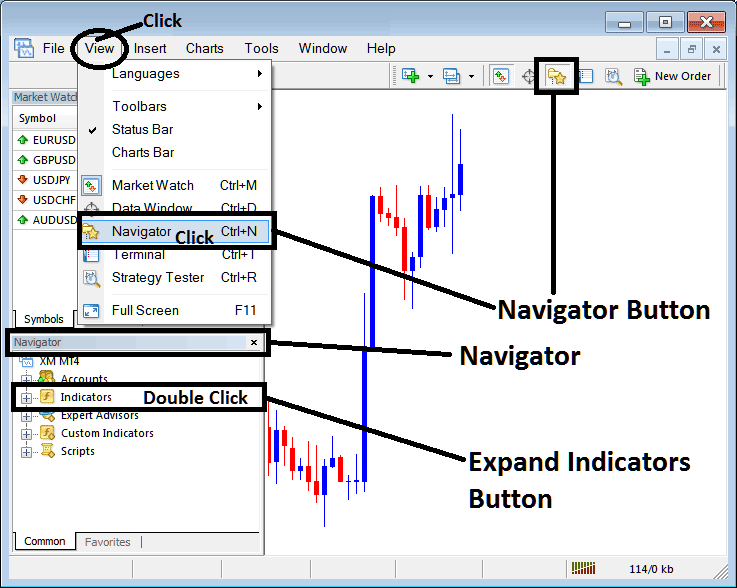
Step 2: Expand Trading Technical Indicators Menu on the Navigator
Enlarge this menu section by clicking the disclosure tool/button marked with a plus symbol ("+") or by double-clicking the "indicators" section: consequently, this specific button will then change its display to a minus symbol ("-") and the contents will appear as a list, similar to what is depicted hereunder.
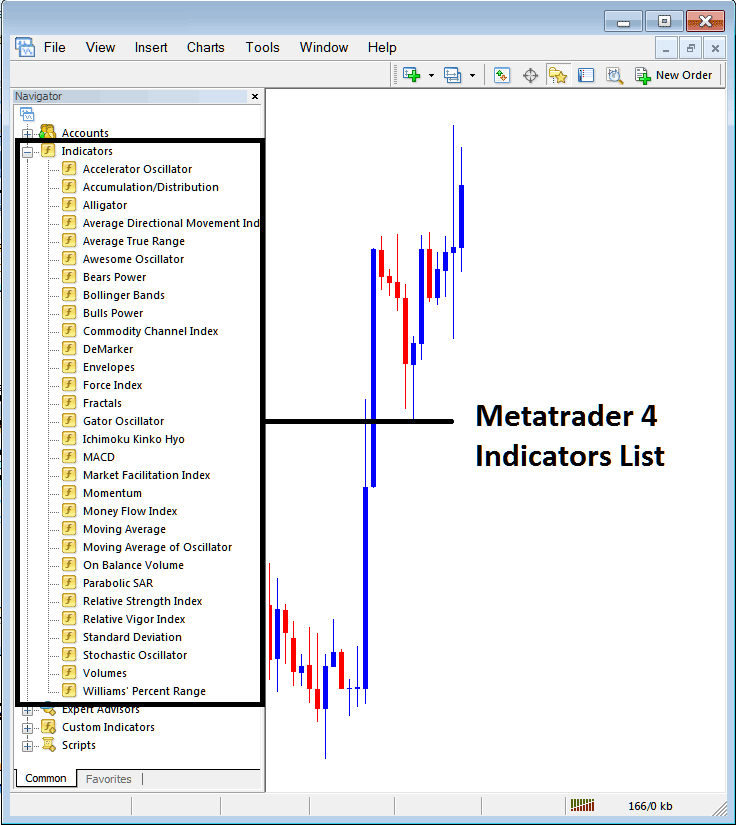
You can then add any indicator you want to the chart from the panel above. The OBV volume indicator can be used to spot reversals, exits, or entries in trading indices.
Placing On Balance Volume Stock Trading Indicator in Chart
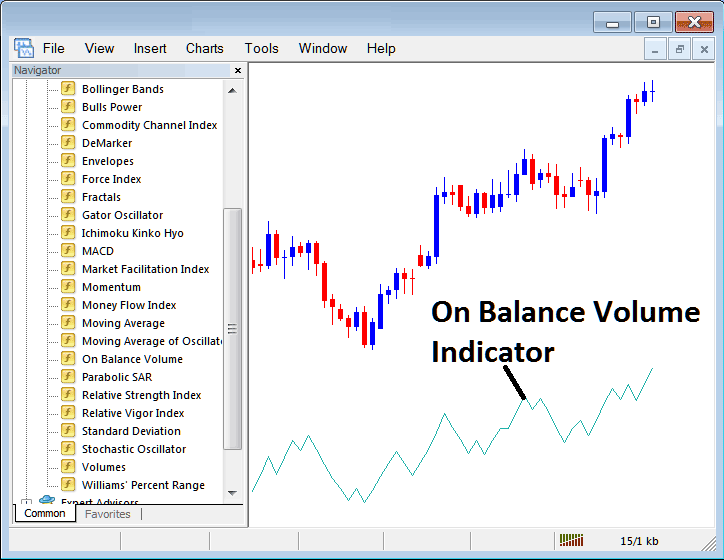
Step 1: Pick the On Balance Volume option on the MT4 indicators list, just like how it is shown here:
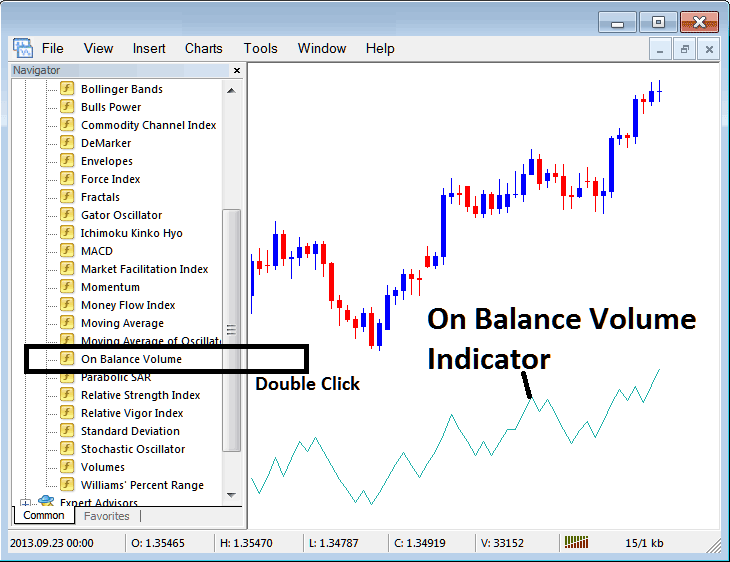
Step 2: Double-click the On Balance Volume button, and click okay to incorporate the OBV Indicator onto the stock chart as illustrated below:
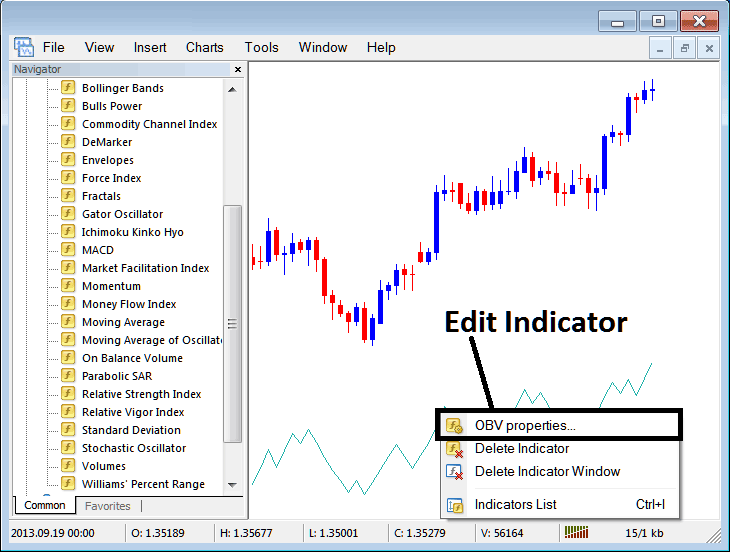
Edit OBV Stock Indicator Setting
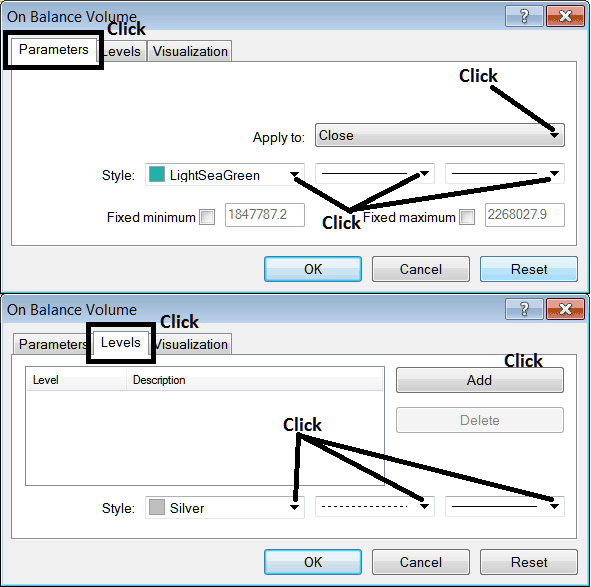
To Adjust Settings, right-click on On Balance Volume Technical Indicator, choose properties settings and then edit settings of the indicator using the popup menu that appears and click ok button key once you change setting.
The following window appears, and you can change the settings for the On Balance Volume Indicator using this window that appears.
Study More Courses:
- How Can You Find MT4 NKY225 Index Trade Chart?
- How to Analyze Trading Indices Price Action Trading Strategy
- How Do You Interpret MT4 Upwards Indices Trend-line in MT4 Software Platform?
- How Can I Add SMI in MT5 iPad App?
- How to Save MT4 Template Index Strategy
