Metals Trend Trading Indicators
Pivot Points are used by metal traders to find support and resistance levels based on the previous day's metals price action.
This metals indicator is a very useful tool that use the previous bars' highs, lows & closings to project support and resistance levels for future bars.
This metals indicator provides an idea of where key support and resistance should be. Place the pivot points on your metal charts and metals price will bounce off one of these levels. These levels are used by metal traders to determine market tops, market bottoms or metals trend reversals.
- Daily pivots points are calculated from previous trading day's high, low, close
This metals indicator is shown below
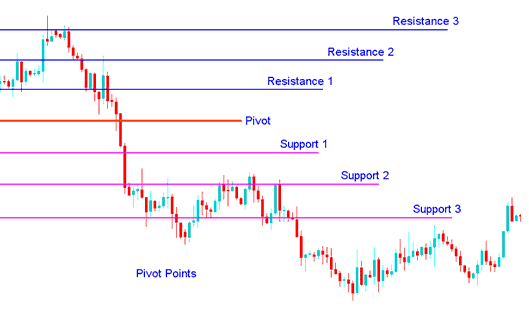
Technical Analysis in Metals Trading
The central pivot itself is the primary level, which is used to determine the trend
The other support and resistance levels are also important in calculating areas that can generate significant market movements.
This metals indicator can be used in 2 ways
The first way is for determining overall Metals trend: if the pivot point is broken in an upward movement, then the metal market is bullish, and vice versa. However, pivot levels are short term metals trend indicators, useful for only one day until they need to be recalculated.
The second method is to use these points to enter and exit the metal markets. This metals indicator is a useful tool that can be used to calculate the areas that are likely to cause metals price movement.
These points should be used conjunction with other forms of technical analysis such as Moving averages, MACD & stochastic oscillator.
This metals indicator can be used in many different ways. Here are a few of the most common techniques for utilizing them.
Metals Trend Direction: Combined with other technical analysis techniques such as overbought/oversold oscillators, volatility measurements, the central point may be useful in determining the general trending direction of the market. Trades are only taken in the direction of the Metals trend. Buy signal occurs only when the metal market is above the central pivot and sell metals signal occur only when the metal market is below the central pivot.
Metals Trading Price Breakouts: A bullish signal occurs when the metal market breaks up through the central pivot or one of the resistances (typically Resistance 1). A bearish signal occurs when the metal market breaks down through the central point or one of the supports (typically Support 1).
Metals Trend Reversals:
- A buy metals signal occurs when the metals price moves towards a support level, gets very close to it, touches it, or moves only slightly through it, and then reverses and moves back in opposite direction.
- A sell metals signal occurs when the metals price moves towards a resistance level, gets very close to it, touches it, or moves only slightly through it, and then reverses and moves back in opposite direction.
Stop Loss and/or Limit Profit Values Determined by Support/Resistance: This metals indicator might be potentially help-ful in determining suitable stoploss and/or limit profit placements. For example, if trading a long break out above the Resistance 1 it may be reasonable to position a stoploss.
Combining with Moving Average Crossover System
A good indicator to combine and trade reversal metals trading signals is the moving average crossover which can be used to confirm the direction of a reversal metals trade signal.
An investor can then open an order once these two indicators give a signal in same direction.
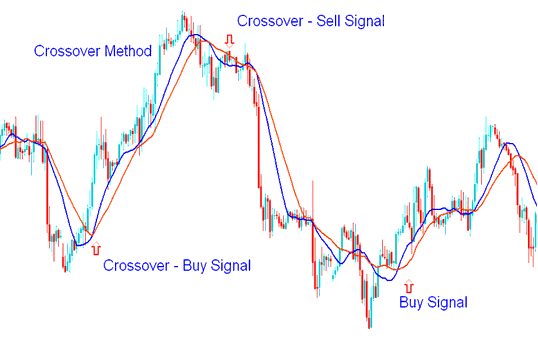
Moving Average Crossover Method
Moving average crossover method that can be combined with this indicator to come up with a trading system for generating buy & sell metals trade signals.
To download Pivot points:
https://c.mql5.com/21/9/pro4x_pivot_lines.mq4
Once you download it open it with MQL4 Language Meta Editor, Then Compile the technical indicator by pressing Compile Button Key and it'll be added to your MT4.
Note: Once you add it to your MT4, the indicator has additional lines named Mid Points, to remove these additional lines open the MQL4 Language Meta Editor(shortcut keyboard key - press F4), and change line 16 from:
Extern bool midpivots = true:
To
Extern bool midpivots = false:
Then Press Compile again, and it'll then appear as exactly shown on this web site.