Setting up Metal Trading Fibonacci Expansion in MetaTrader 4 and Changing its Settings
The steps below explain how to draw these levels, how to use this tool and how to change its settings.
How to Add This Tool in MT4 Software
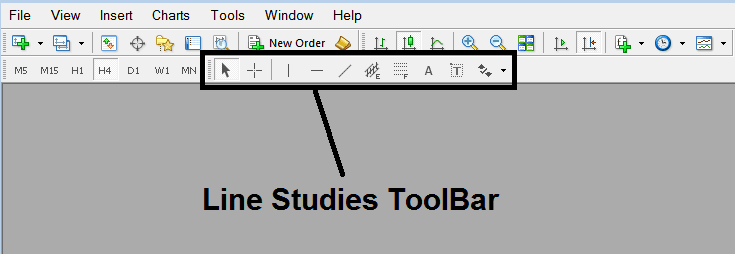
Steps: This tool is not displayed by default in MT4 settings, if the button does not appear on your MT4, (no need to download this indicator) then locate the "MT4 Line Studies Toolbar" shown below and follow the steps below:
1. MT4 Line Studies ToolBar
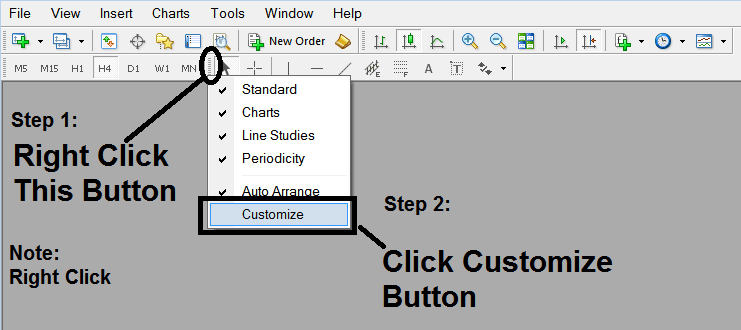
2. Customize Line Studies Toolbar
Right click the Customize button key (illustrated and shown below) >>> A dropdown menu appears, Select Customize >>>
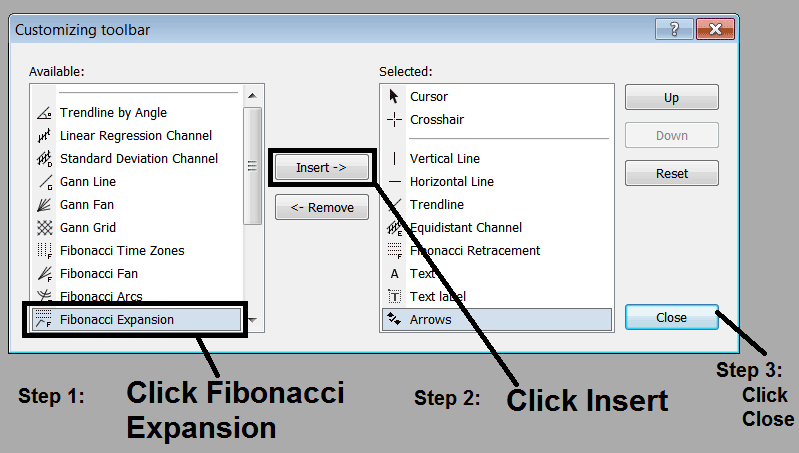
3. Place This Tool in MetaTrader 4 Software
Choose the expansion tool from the pop up panel which will then appear >>> Click Insert button >>> Click Close. (Shown Below)
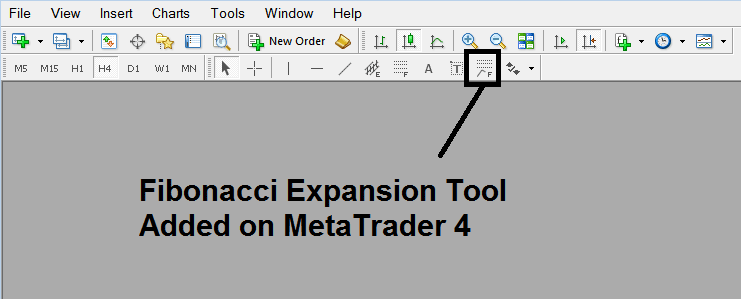
4. Metals Fibo Expansion Tool Added
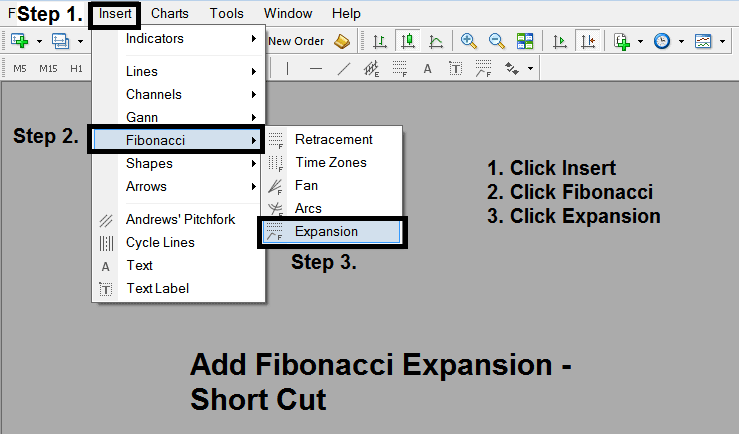
Short Cut of How to Add
You can also use this short-cut instead of the above method, do this:
- Click "Insert Menu"
- Click Fibo
- Click Expansion
Steps on How to Draw Expansion
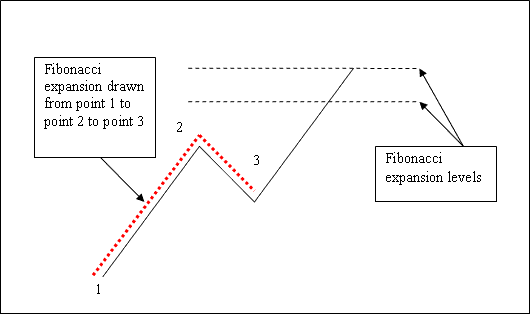
Steps. Once you've added this button, you can draw this tool by choosing it and drawing it on a metal chart. Three points will be marked 1, 2 & 3, choose the Fibonacci indicator, place the indicator on point 1 and while still holding down the mouse button key drag the mouse upto point marked 2.
How to Adjust This Tool on a Chart
Steps. Once you have drawn this indicator, you might need to move one point or another to the exact position where you precisely want. These 3 points are marked 1, 2 & 3 and these are used to change the settings after this indicator has been drawn on a Metals chart.
To change the settings: do this, doubleclick the indicator, it appears as dotted lines (shown above), 3 cursor points appear that are marked 1 2 3, you can then use these Three points to adjust & fit the indicator accordingly to your chart (just click on the point you want and move it).