What's MT4 CFDs Charts Tabs?
When you open many cfds charts on the MT4 cfd software, these cfd charts are arranged in navigation tabs bar just below the MT4 cfd chart workspace as shown below.
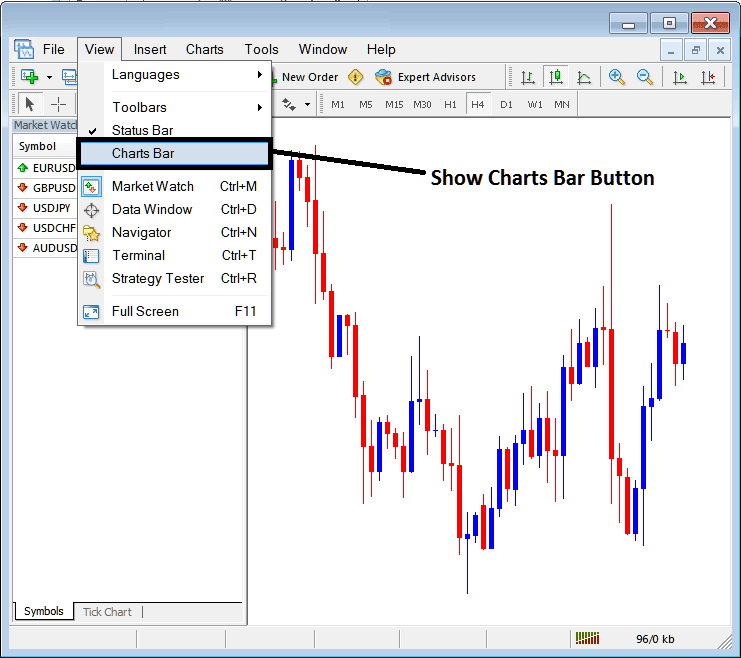
If on your MT4 cfds trading software this display bar is not highlighted - as in the cfd examples shown above - you can follow the following procedure to show this MT4 bar as well as these MetaTrader 4 tabs.
On the "View" menu drop down list option, the fourth button is named "Charts Bar" as shown above. To view this display bar on the MT4 platform just click and check or tick this button and the it will appear as shown below displaying all the open cfd charts as tabs that a trader can use to open any of these listed cfds charts.
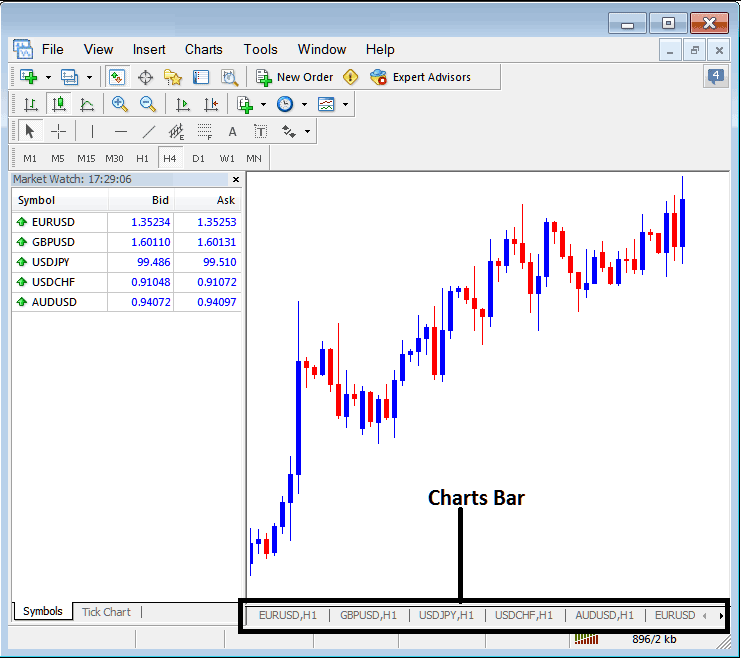
Once you tick this option the MT4 bar appears and this MT4 bar also has right and left arrows that a trader can use to scroll to the left or to the right and navigate other open cfd charts from this MT4 bar.
These MetaTrader 4 cfd chart tabs are used to organize all the open cfd charts in MetaTrader 4 platform in an orderly manner. This MetaTrader 4 tab also gives the trader easy access to any cfd chart that they might have opened.
As the trader continues to open more cfd charts, this MT4 Bar of chart tabs adds navigation arrows to the right and to the left of this MT4 bar, this way a trader can scroll to the left or to the right of this MT4 bar of chart tabs until they find the cfds chart for the cfd that they want to trade.
For ease of navigation each tab on this MT4 bar also shows the cfds chart timeframe for which this particular cfd chart is set for. The last MT4 Tab does not show the cfds chart timeframe and a trader has to use the right and left scroll arrow buttons next to this tab to navigate. Once the trader reaches one end that arrow is then grayed out - as shown above, the right arrow scroll button above is grayed because the first cfd chart - cfd chart is the first cfd chart on the right side of this MT4 bar.