MT4 Metals Platform Meta Editor Guide: Adding Custom Trading Indicators
MT4 Metal Trading Platform Command Line - The MetaEditor language Editor is a programming environment on the MT4 that metal traders can use to add new MT4 Custom Indicators, Scripts, Libraries and Include Files which are used in MT4 programming - MT4 Command Line Programming Editor. The MT4 metal trading platform MetaEditor or MT4 Command Line MetaEditor is commonly used by Metals Traders who use Automated Metals Trading EAs to place metal trades. In this Best MT4 Custom Indicators metals trading guide we shall look at how to add a custom indicator in MT4 platform using the MetaEditor, to learn how to add a new MT4 Metals Trading Expert-Advisor Automated Metals Trading Bot you can navigate to the: Adding a new MT4 Metals Expert-Advisor Metals Trading Tutorial.
The MT4 online metals platform Meta Editor environment is illustrated & shown below.
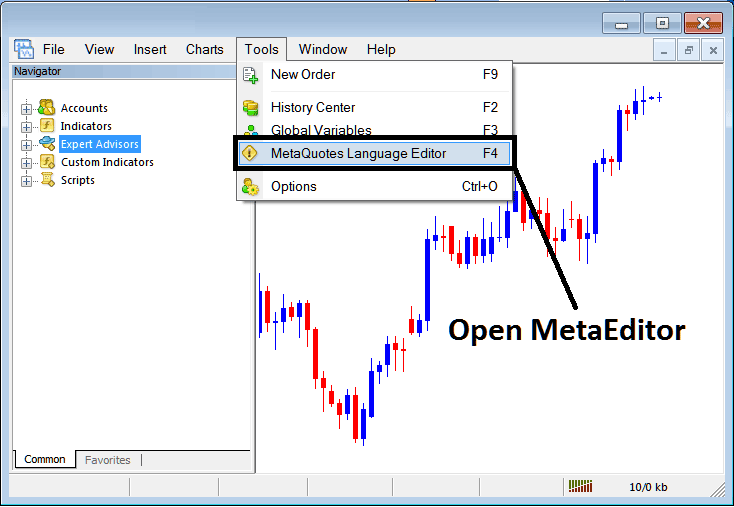
MT4 Metals Trading Platform MetaEditor Environment - MT4 Metals Platform Command Line
Meta Editor Menu - MT4 Command Line MetaEditor Menu

On the MetaTrader 4 metal trading platform, after adding a Metals Trading Indicator a trader will need to compile this newly added metal trading custom indicator item so that it can now be recognized by MetaTrader 4 Platform & start to appear in the MT4 platform Navigator Window on MT4 Custom Indicators Sub Menu.
Best MetaTrader 4 Custom Metals Indicators Guide
After you have opened the MetaQuotes Language Editor - MT4 Metals Platform Command Line MetaEditor - on your metals platform as displayed above (Key board ShortCut Key - Press F4), you can then follow steps below:
Step1: Go To File Menu, Then Select "New"
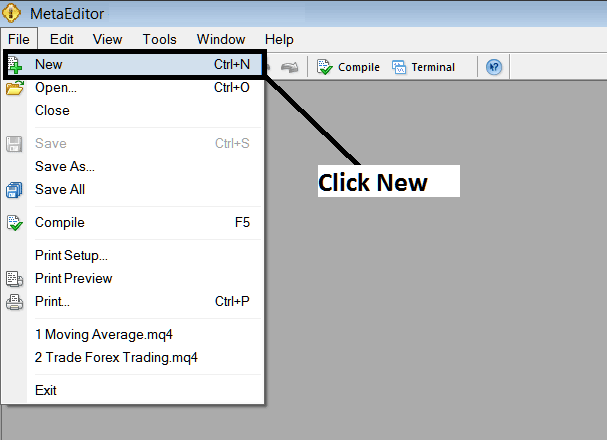
Adding Custom Indicators in MT4 Platform - How to Add MT4 Custom Indicators Metal Trading - Metals MetaTrader 4 Command Line
Step2: On the Popup window which pops on your screen choose "Custom Technical Indicator" and click next
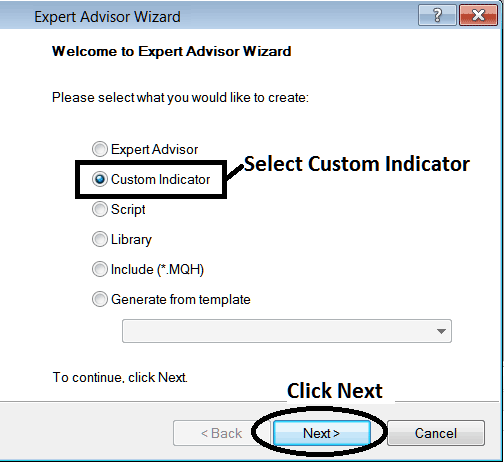
Adding Custom Indicators in MT4 Platform - Add MT4 Custom Metals Indicators
Step3: Choose & Enter a Name as Shown Below & then Click Next
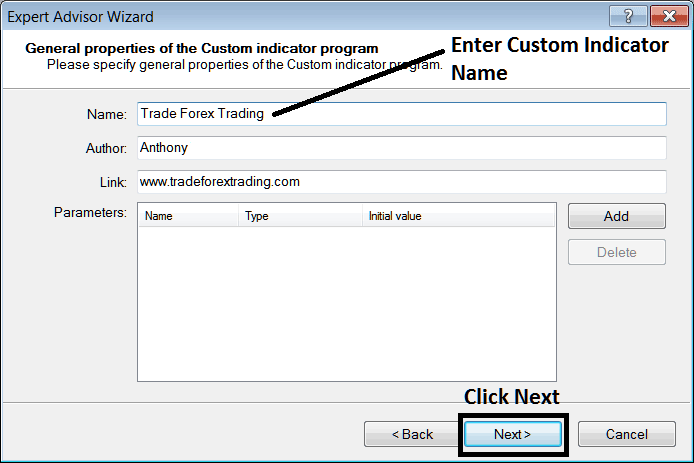
Creating Custom Metals Trading Indicator in MetaTrader 4 Platform
Step4: Specify if MT4 Custom Indicator is to appear on a separate window or not, Then Click Finish
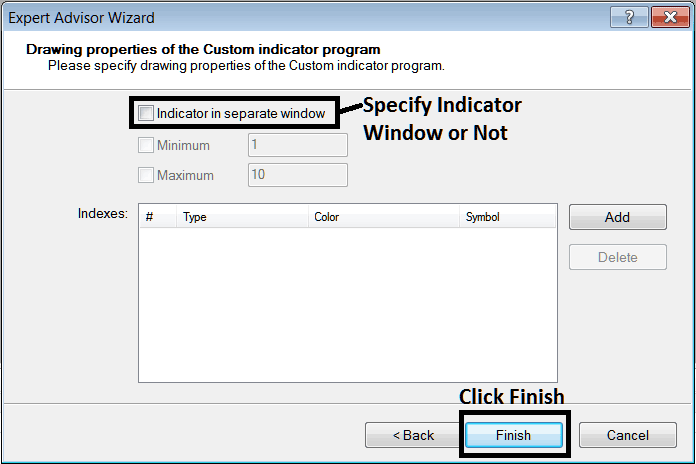
Creating Custom MetaTrader 4 Indicator - How to Create Metal MetaTrader 4 Custom Trading Indicators
For an MT4 custom indicator that is a metals price overlay - do not check this box, & for an oscillator custom MetaTrader 4 Indicator - for example oscillators such as the RSI technical indicator or Stochastic Oscillator - check the above option.
The Following Program will appear on the metals platform MetaEditor Window
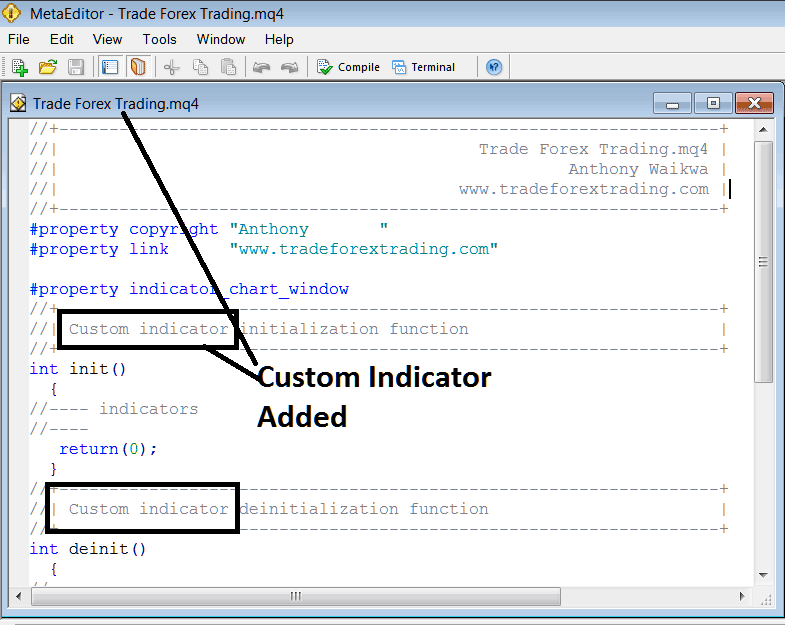
Adding Metal MT4 Custom Indicators in MT4 Platform
To program a customized MetaTrader 4 custom indicator it requires that you are a coder who knows C plus plus Object Oriented Programming Language, which is the programming language that the MQL4 programming language uses in the programming of the MT4 metals software. Or you can find the community of MQL4 Programmers & they can program MT4 Custom Indicator for you.
Step4: Compile
Do not forget to compile, for the MT4 Metals custom indicator to be recognized by the MT4 metals trading platform: a trader must compile the program - custom indicator program, then close and restart the MT4 metal platform, just like restarting your PC computer Desktop PC - you will re-start MT4 metal trading platform so that the newly added metals custom MT4 indicator can start appearing & be listed on the MT4 Navigator Panel - MetaTrader 4 Custom Indicators Sub Menu.
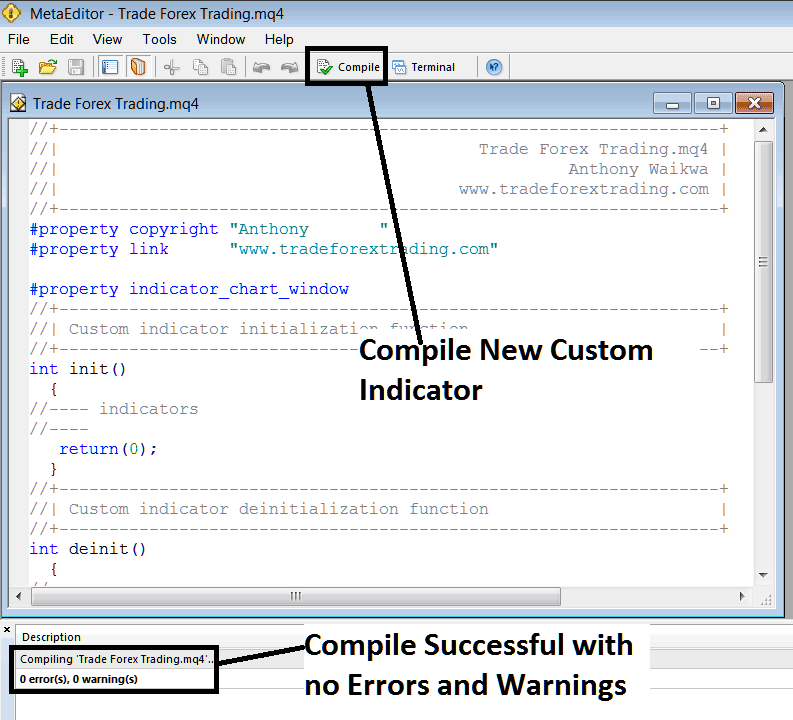
Compile New Custom Indicator on The MT4 Online Metals Trading Platform
If there are no Errors, the metal MT4 custom indicator will be compiled successfully without any error as shown above.
Step5: Rebegin MT4 Metals online software & the new MT4 metal trading custom indicator should now be listed on the MT4 Navigation Menu as illustrated and shown below and you can start trading with the new added MT4 custom indicator.
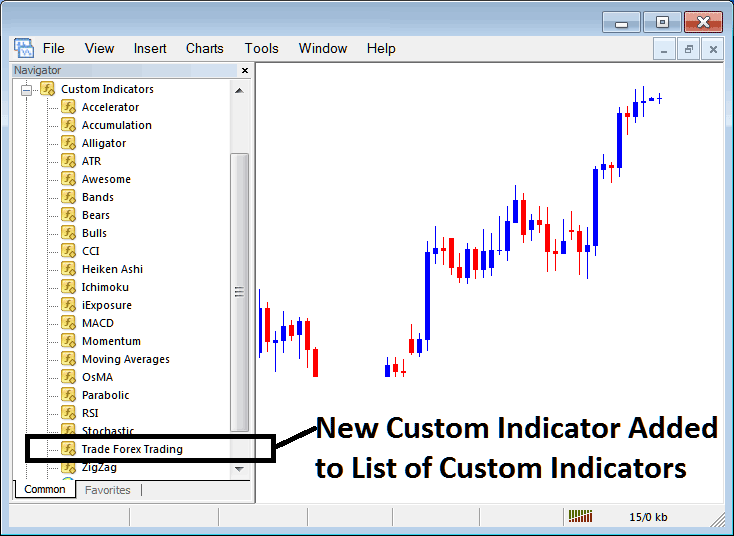
New MetaTrader 4 Custom Technical Indicator Added To The Metals Software - MetaTrader 4 Custom Indicators
How to Add a Downloaded Custom Indicator in MT4 Software
If you download MetaTrader 4 custom technical indicator from a source on the internet for example on www.tradegoldtrading.com, & it is now on your PC Desktop computer - to add it to the MT4 metal platform, follow the steps below:
Step 1: On the File Menu of the Meta-Editor, Choose "Open"
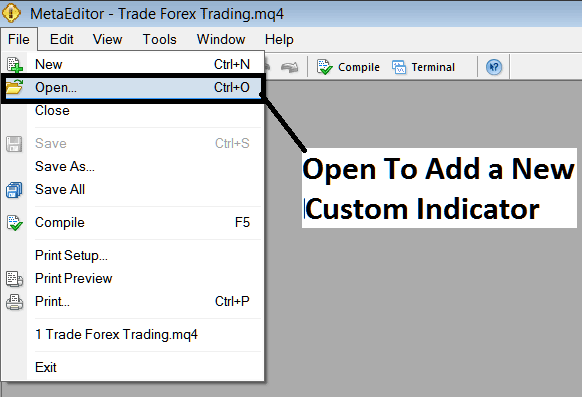
Open a Downloaded Metals Technical Indicator Using Meta Editor
Step 2: Locate the Download Folder from the Popup window that pops as illustrated and shown below.
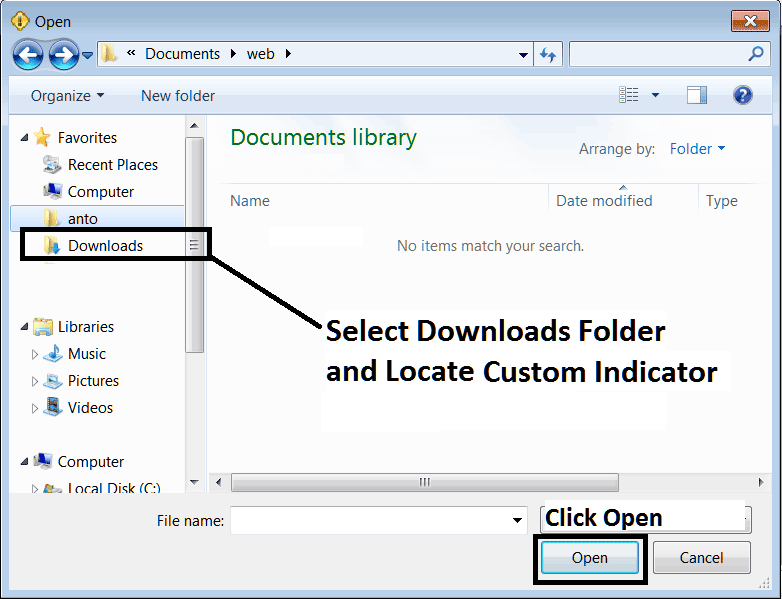
Step 3: Once you open the download MT4 custom indicator that you have downloaded from an internet source it'll be displayed on the MetaEditor Work Space - you can then follow the above procedure for compiling the download MT4 custom indicator, once it's compiled without errors, re-start your MT4 metal software & it will now be added on the metals platform navigator menu & you can start to trade with it on your MT4 Metal Trading Platform.
MT4 Custom Trading Indicators Metal Trading - MetaTrader 4 Metal Trading Custom Metal Indicators.