How Do I Add a Custom MetaTrader 4 Indicator on MetaTrader 4?
How Do I Add a Custom MetaTrader 4 Indicator on MetaTrader 4?
Trading Gold Install a XAUUSD Custom Indicator to Your MetaTrader 4 Gold Trading Platform
- Download the MT4 custom indicator.
- Locate the Custom technical indicator & copy this MT4 custom indicator file.
- Open the data folder on MetaTrader 4.
- Open MQL4 file on MT4.
- Locate the Navigator Window.
- On the navigator panel, find the Custom Trading Indicators option.
- Open your Custom indicator by double-clicking the indicator.
- The Custom Technical Indicator Properties window will appear.
- The Custom Technical Indicator Will now be added to your MT4 software.
Trading Gold install custom indicators on MT4
Trading XAUUSD Add Custom Indicators to XAUUSD MetaTrader 4 Trading XAUUSD Platform
MetaTrader 4 Gold Trading Platform Meta Editor Guide: Adding Custom Trading Indicators
The Meta-Editor language Editor is a coding environment on the MetaTrader 4 gold trading software that traders can use to add new Custom Trading Indicators, Scripts, Libraries & Include Files which are used in coding. MT4 platform MetaEditor is commonly used by Gold traders who use Automated Gold Expert Advisors to place trades. This learn MT4 lesson we shall look at how to add a custom technical indicator in MetaTrader 4 platform using the MetaEditor, to learn how to add a new Expert Advisor you can go to the: Adding a new MT4 Gold Trading Expert-Advisor MetaTrader 4 Gold Trading Platform Tutorial.
The MetaTrader 4 online gold platform MetaEditor environment is displayed below.
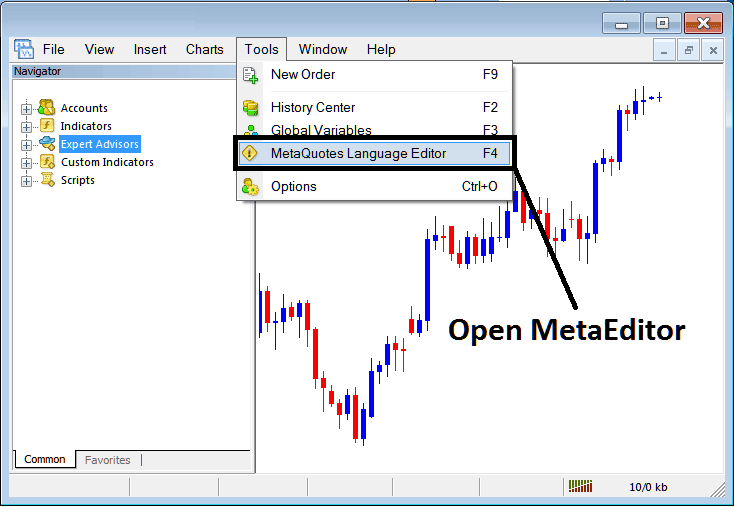
How to Add a Custom MetaTrader 4 Indicator in MetaTrader 4 Gold Trading
MetaEditor Menu

How to Add a Custom MetaTrader 4 Indicator on MT4
On MT4 platform, after adding an Indicator a trader will need to compile this newly added item so that it can now be recognized by the MetaTrader 4 Gold Platform and start to appear on MT4 software Navigator Window Panel.
Adding a New Custom XAUUSD Indicator in MT4 Platform
After you've opened the Meta Quotes Language Meta-Editor on your MT4 software as illustrated above (Keyboard Short-Cut Key - Press F4 Key), you can then follow the steps below:
Step1: Go To File Menu, Then Choose "New"
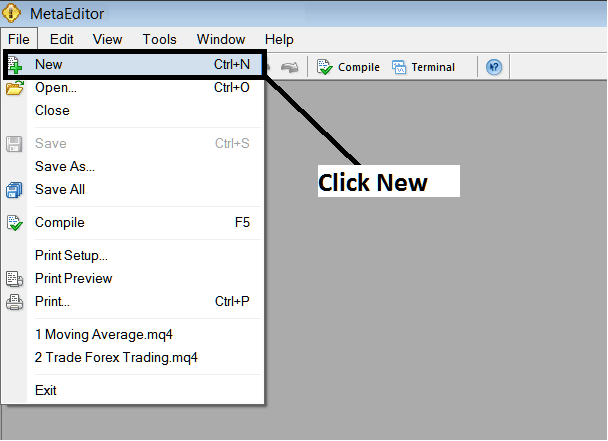
How to Add a Custom MetaTrader 4 Indicator on MT4
Step2: On the Popup panel that pops up on your screen select "Custom Trading Indicator" & then click next.
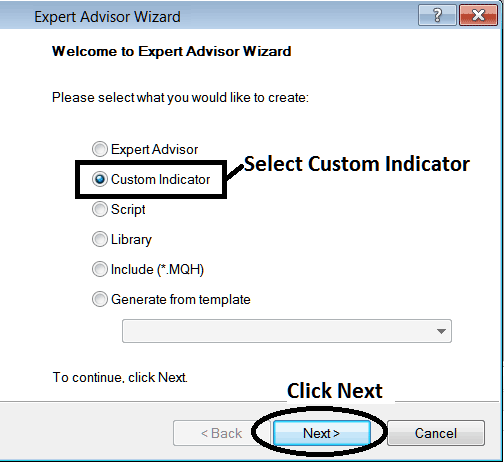
MT4 Window for Adding Custom Trading Indicator
Step3: Select and Enter a Name as Shown Below & then Click Next
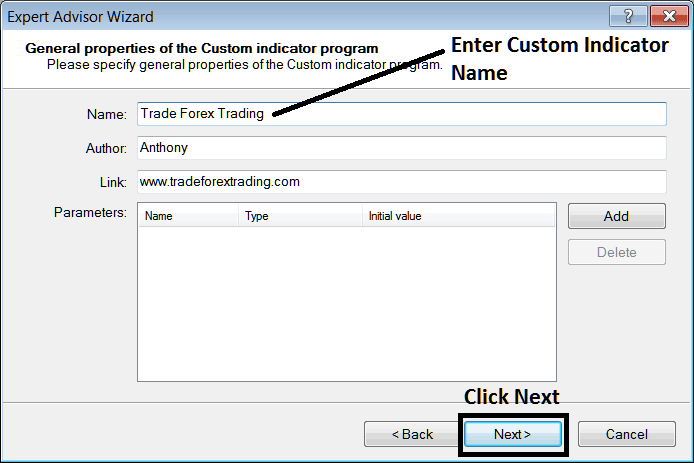
Name of New Custom Indicator on MT4
Step4: Specify if it is to appear and show on a separate window panel or not, Then Click on Finish
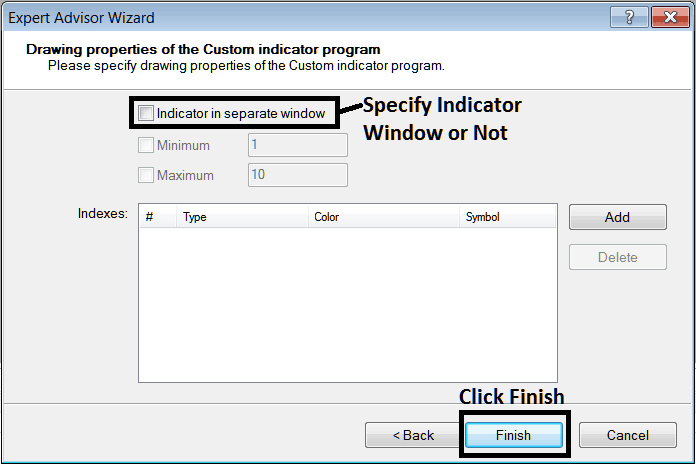
Custom Technical Indicator Properties Setting
For an MT4 custom indicator that is a xauusd price overlay - don't check this box, & for an oscillator like the RSI or Stochastic Oscillator - check the above option.
Following Program will popup in MT4 platform MetaEditor Panel
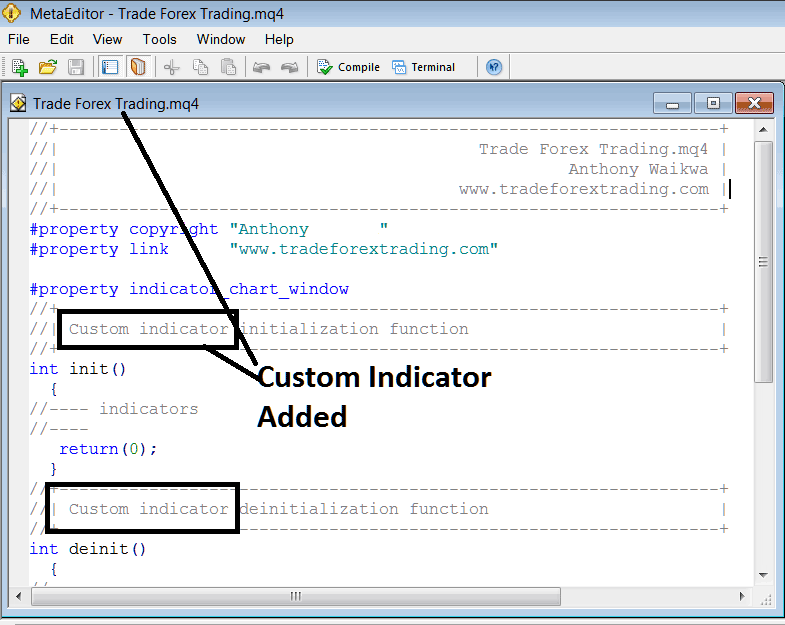
Adding Custom Technical Indicator in MT4 Meta Editor
To program a customized MT4 indicator it requires that you are a programmer who knows the C + + Object Oriented Programming Language, which is the programming language that the MQL4 programming language uses in the programming of the MT4 software. Or you can find the community of MQL4 Programmers and they can program the custom indicator for you.
Step4: Compile
Do not forget to compile, for MT4 Gold custom technical indicator to be recognized by the MetaTrader 4 gold trading platform: one must compile the program, then close & restart the MetaTrader 4 platform, just like when you restart your Desktop computer - you'll re-begin MT4 platform so that the new added custom MT4 custom technical indicator can begin appearing and be listed on the MT4 Navigator Window.
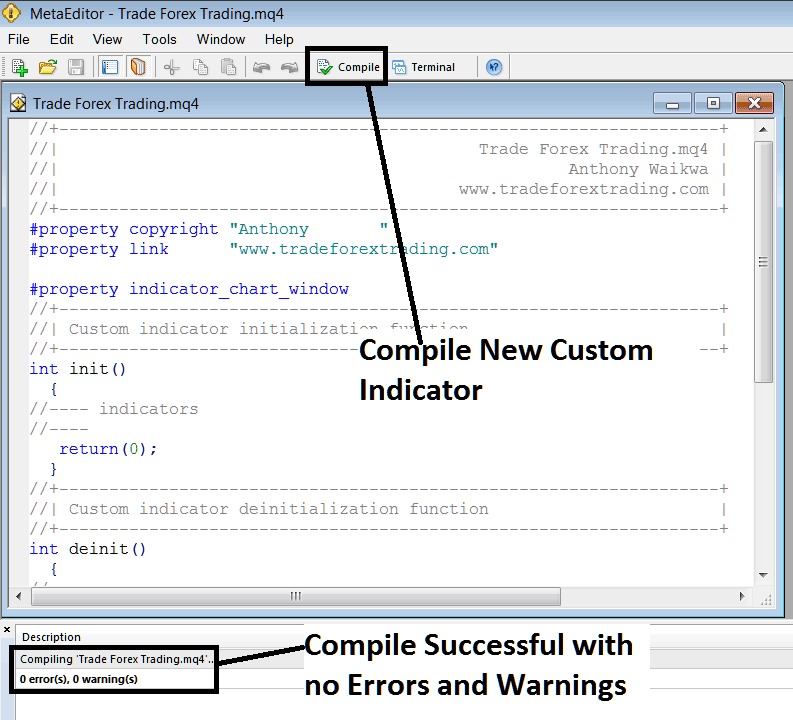
Compile New Custom Indicator on the MetaTrader 4 Platform
If there are no Errors, it will be compiled successfully without any error as shown above.
Step5: Rebegin MT4 online xauusd trading platform & it should now be listed on the MetaTrader 4 Navigation Menu as illustrated below & you can start trading with newly added custom technical indicator.
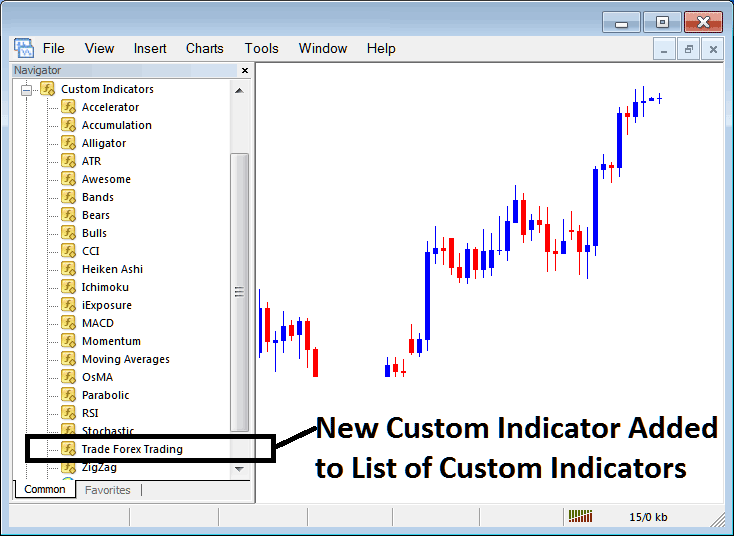
New Custom Indicator Added to Indicator List on MT4
How to Add a Downloaded Custom Gold Indicator on XAUUSD Trading Software
If you download an indicator from a source on the internet for examples on www.tradegoldtrading.com, and it is now on you desktop computer - to add it to MT4 platform, follow steps below:
Step1: On MT4 Gold Trading Platform File Menu of Meta Editor, Select "Open"
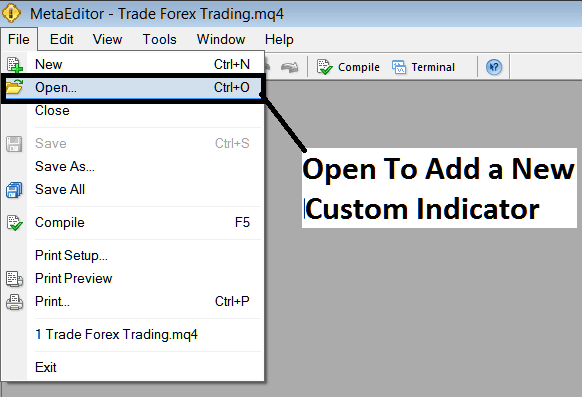
Add a Downloaded Indicator to MT4
Step2: Locate Download Folder from the Popup panel which pops up as illustrated below.
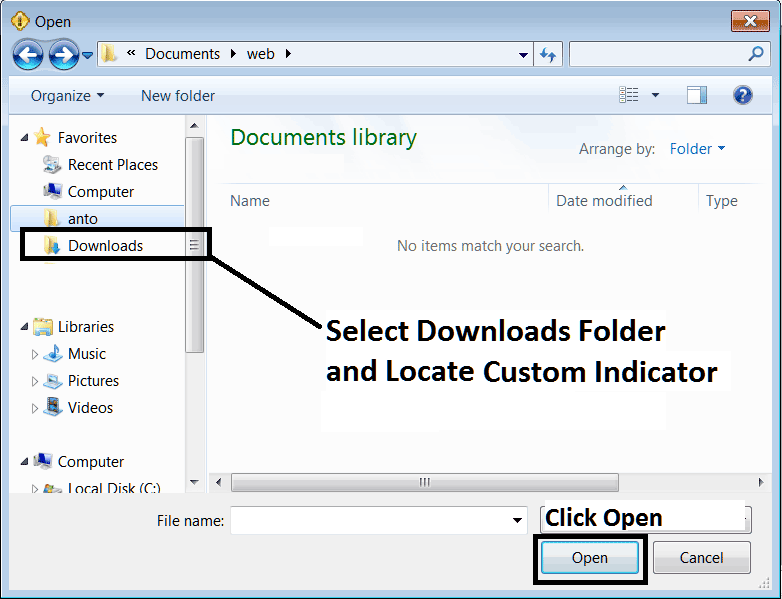
Trading Gold Add Custom Indicators to XAUUSD MetaTrader 4 Trading Gold Software?
Step3: Once you open the downloaded custom technical indicator it'll be displayed on Meta-Editor Work-Space - you can then follow the above procedure for compiling the downloaded MT4 indicator, once it is compiled without errors, restart your MetaTrader 4 platform and it will now be added on the gold platform navigator menu & you can begin to trade with it on your MT4 Gold Trading Platform.
How to Add a Custom MetaTrader 4 Indicator on MT4